Powering Sidebar with Your Knowledge: An Introduction to Knowledge Hubs
Last updated: February 10, 2026
Sidebar is powerful out of the box, but its true potential is unlocked when it understands your organization's unique context. Knowledge Hubs are the key to securely teaching Sidebar about your company's policies, templates, and historical agreements, turning it from a generic legal assistant into a specialized co-pilot with institutional memory.
What are Knowledge Hubs?
Think of a Knowledge Hub as a secure, intelligent folder within Sidebar. It's a dedicated space where you can upload your team's critical documents—like standard contract playbooks, internal policies, or frequently used templates. Once documents are in a hub, Sidebar can instantly access and reason over that information to provide highly contextual and relevant answers.
Pro tip: Download a Sample NDA review Playbook:
How to Create and Populate a Knowledge Hub
Setting up your first hub is a simple, two-step process: create the hub, then add your files.
Step 1: Create a New Hub
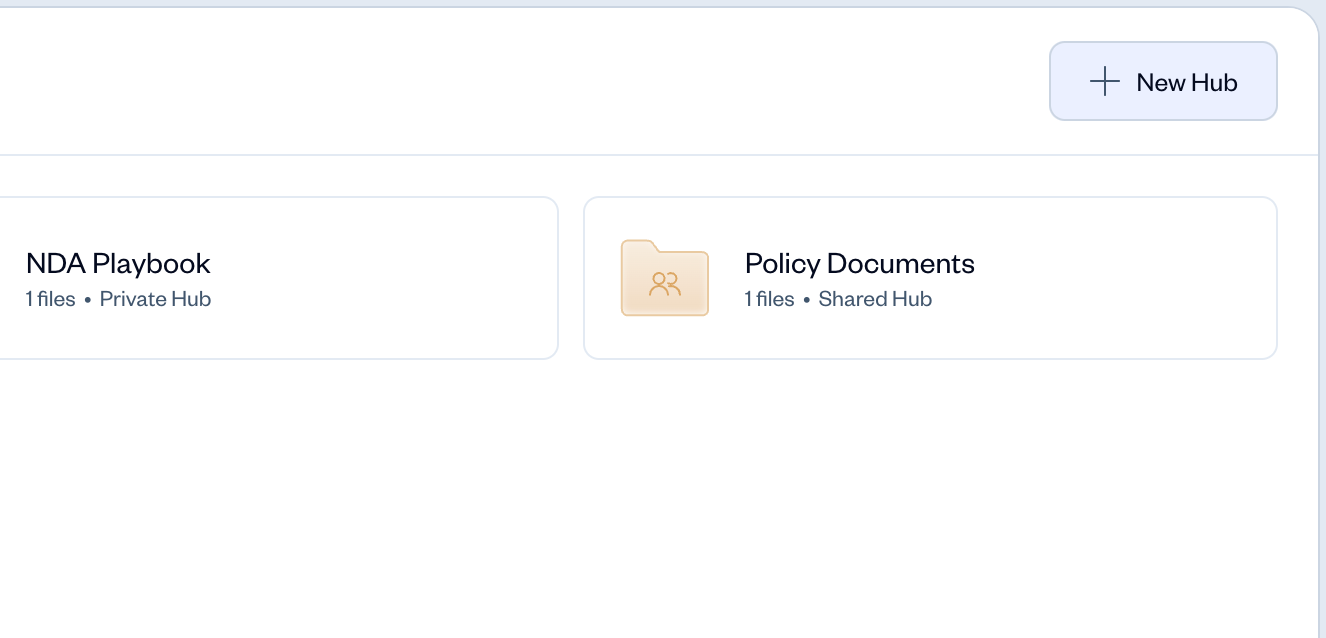
Navigate to Knowledge Hubs from the left navigation panel.
Click the + New Hub button in the top-right corner.
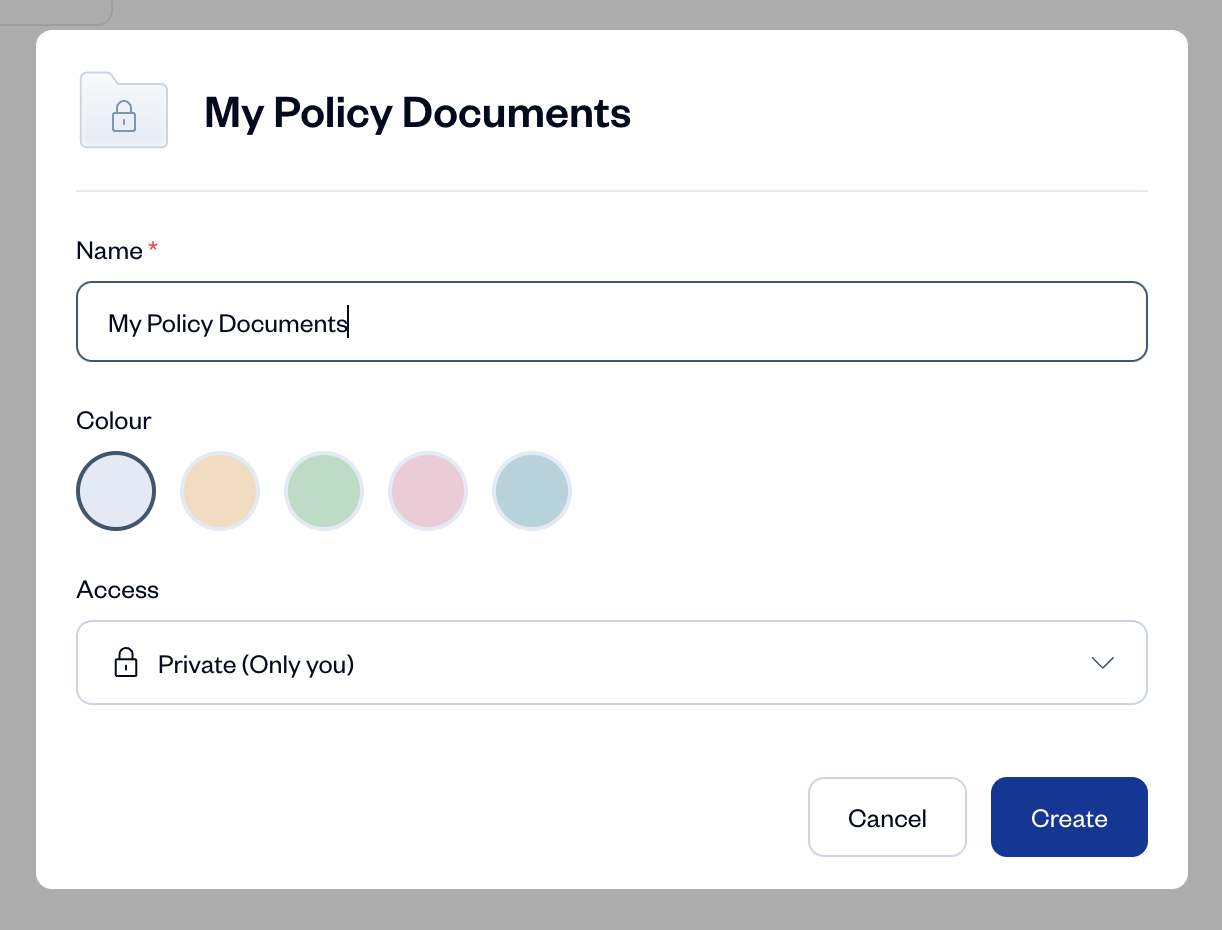
In the window that appears, configure your hub:
Name: Give it a clear, descriptive name (e.g., "Contract Review Playbooks," "HR Policies").
Colour: Choose a color to visually distinguish it.
Access: Decide who can use this hub.
Private (Only you): Only you can see and use the contents of this hub.
Shared (Anyone in your organization): Anyone in your company's Sidebar workspace can see and use this hub.
Click Create.
Step 2: Add Files to Your Hub
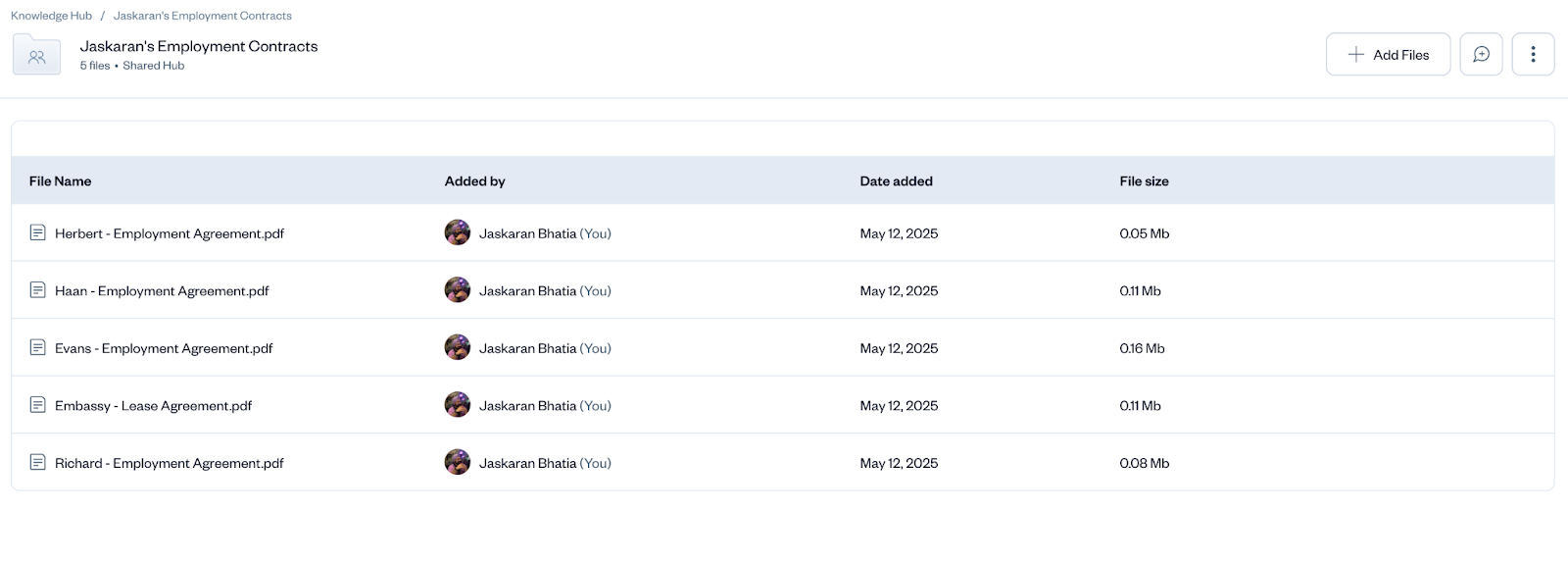
Click on the hub you just created from the Knowledge Hubs page.
Click the + Add Files button.
Select one or more documents (PDF or DOCX only) from your device to upload.
Using Your Knowledge Hubs in a Chat
Once your hub is populated, you can leverage its knowledge in your chats in two distinct ways.
Method 1: Attaching a Hub to a Chat (For Focused Tasks) Use this method when you want Sidebar to focus exclusively on the contents of a specific hub. This is perfect for tasks like reviewing a contract against a playbook.
In a new chat, click the Attach File (paperclip) icon.
In the pop-up window, click the Add from Knowledge Hubs button.
Select the hub you want to use. It will now appear as an attachment in your message box.
Type your prompt, such as, "Review the attached vendor agreement against the guidelines in our Contract Review Playbook."
Method 2: Enabling a Hub as a Source (For General Context) Use this method to give Sidebar permission to reference a hub's content if it's relevant to a broader question.
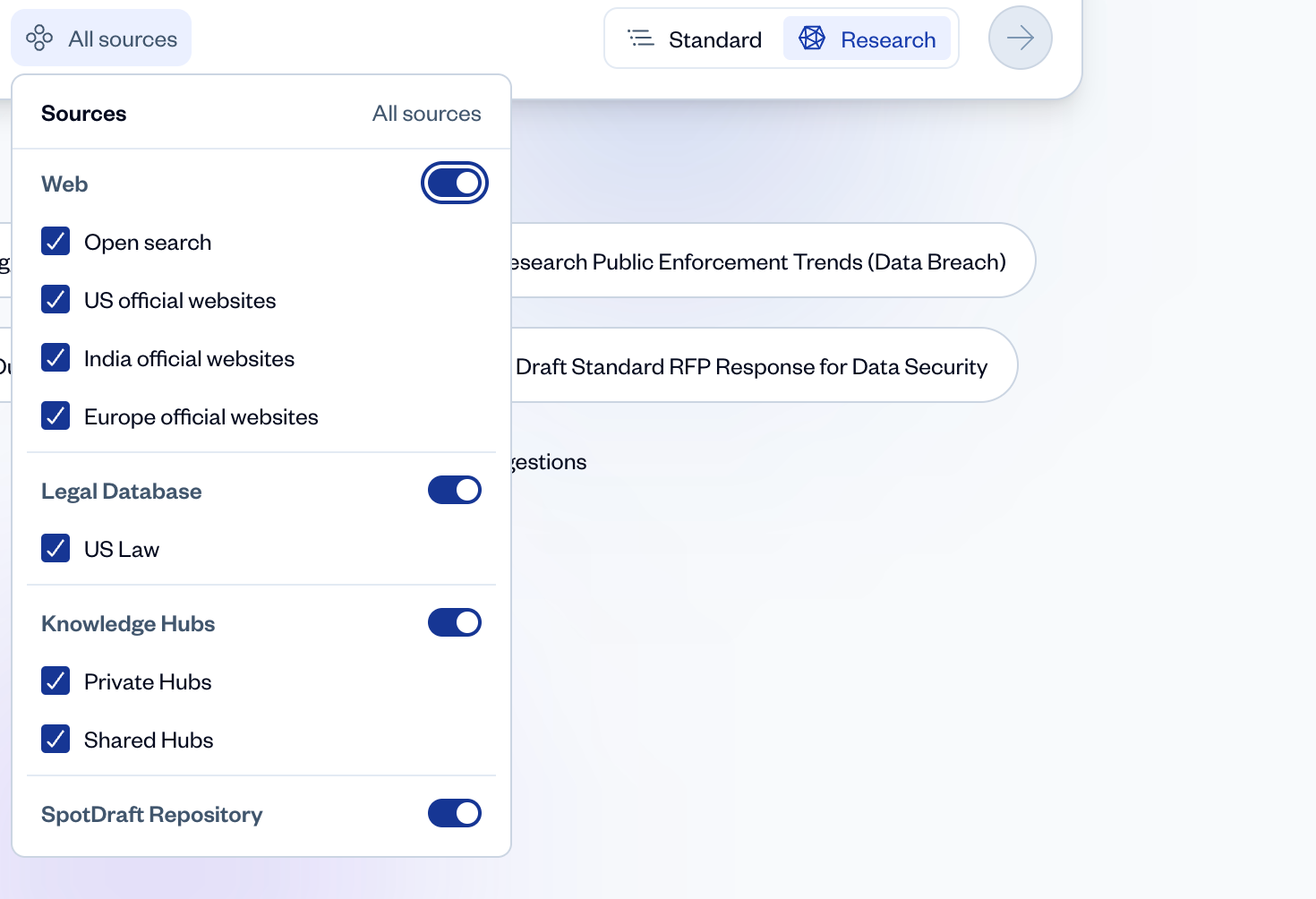
In the chat toolbar, click the All sources button.
In the dropdown menu, find your hub under the "Knowledge Hubs" section and switch the toggle on.
Now, when you ask a question, Sidebar will automatically search that hub for relevant information in addition to its other enabled sources.
Pro Tip: Create a "Standard Playbooks" hub and set its access to "Shared." This ensures that whenever anyone in the legal team reviews a third-party contract, they can all reference the exact same set of approved positions, driving consistency across the organization.
Troubleshooting & Common Questions
Is the information I upload to a Knowledge Hub secure?
Yes. Your data is completely secure and segregated. Documents in a private hub are only accessible to you. Documents in a shared hub are only accessible to users within your organization's Sidebar workspace. Your data is never used to train models.
What's the difference between attaching a hub and enabling it as a source?
Attaching is a direct instruction to focus on that hub for a specific task. Enabling as a source is giving permission for Sidebar to proactively search that hub if it thinks the content is relevant to your query.
Can I edit a file once it's in a Knowledge Hub?
Currently, you cannot edit a file directly within a hub. To update a document, you should delete the old version from the hub and upload the new version.