Visual Updates to VerifAI (Coming Soon)
Last updated: June 30, 2026
We’ve introduced several enhancements to how you interact with Guideline results, both in the DraftMate plugin and the VerifAI section of your contract details. These updates are designed to declutter your workspace and help you focus on the deviations that matter most.
1. New Tabbed Navigation for Guideline Status
We have moved away from the previous filter system to a new Tabbed View. Guidelines are now automatically categorized, allowing you to isolate the items that require your immediate attention.
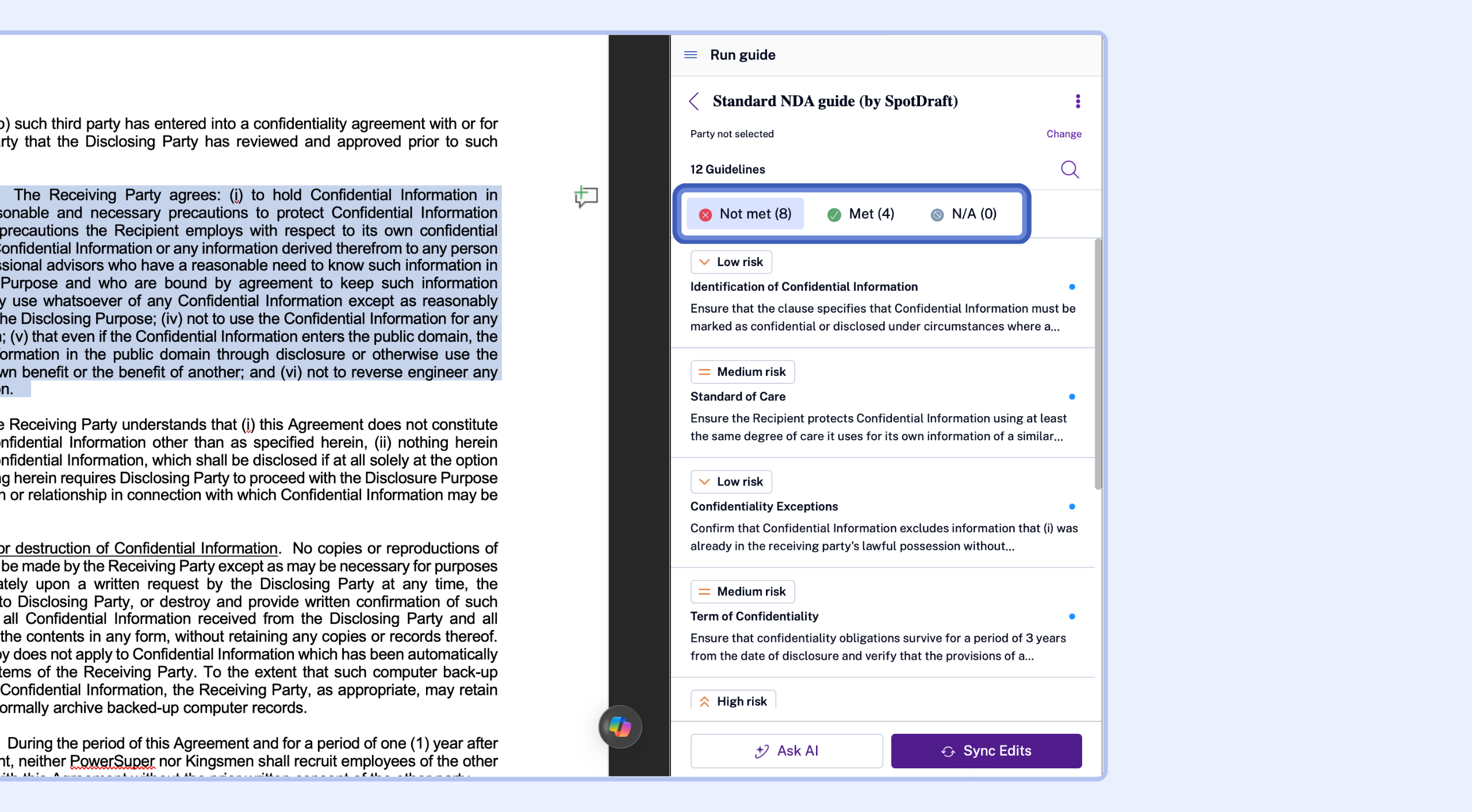
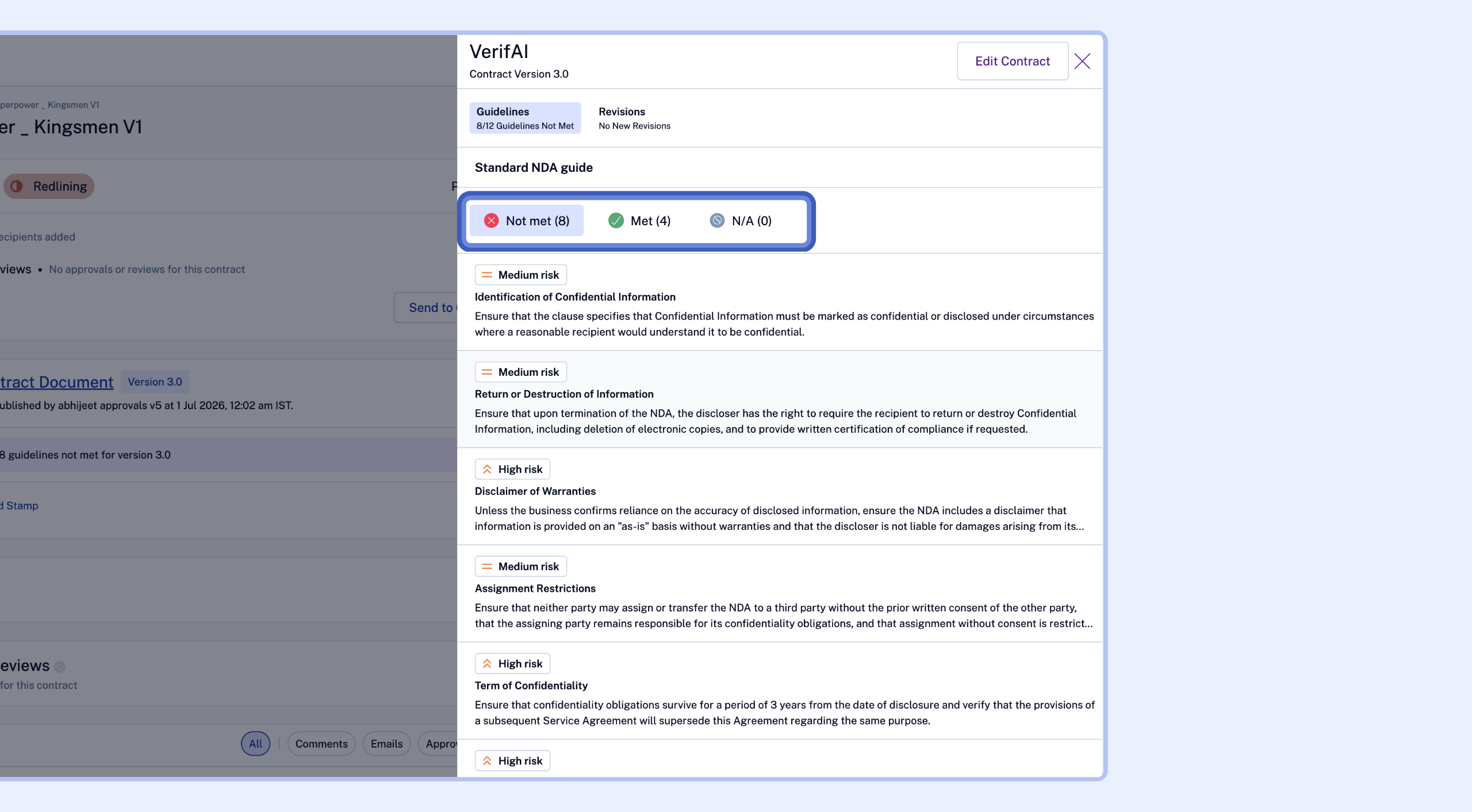
In this view, the "Not Met" tab is highlighted, providing a dedicated space for critical deviations. Guidelines that are "Met" or "N/A" are separated, ensuring you aren't distracted by clauses that don't require action.
This bring focus to additional information like risk level present for all the "Not Met" guidelines. In future we will additionally flag if any fallbacks are being met for a particular guideline here.
Additionally, we have removed the red "cross" and green "checkmark" status icons directly from the guideline list views to make the screen less visually heavy and much easier to read. Secondary metadata—such as the number of fallbacks or typical wordings configured—has also been removed from this high-level view. This ensures only the most vital information is presented upfront, allowing you to scan more guidelines at once without feeling cluttered.
2. Search Within Your Results
You can now quickly locate specific guidelines within any results list using the new search functionality.
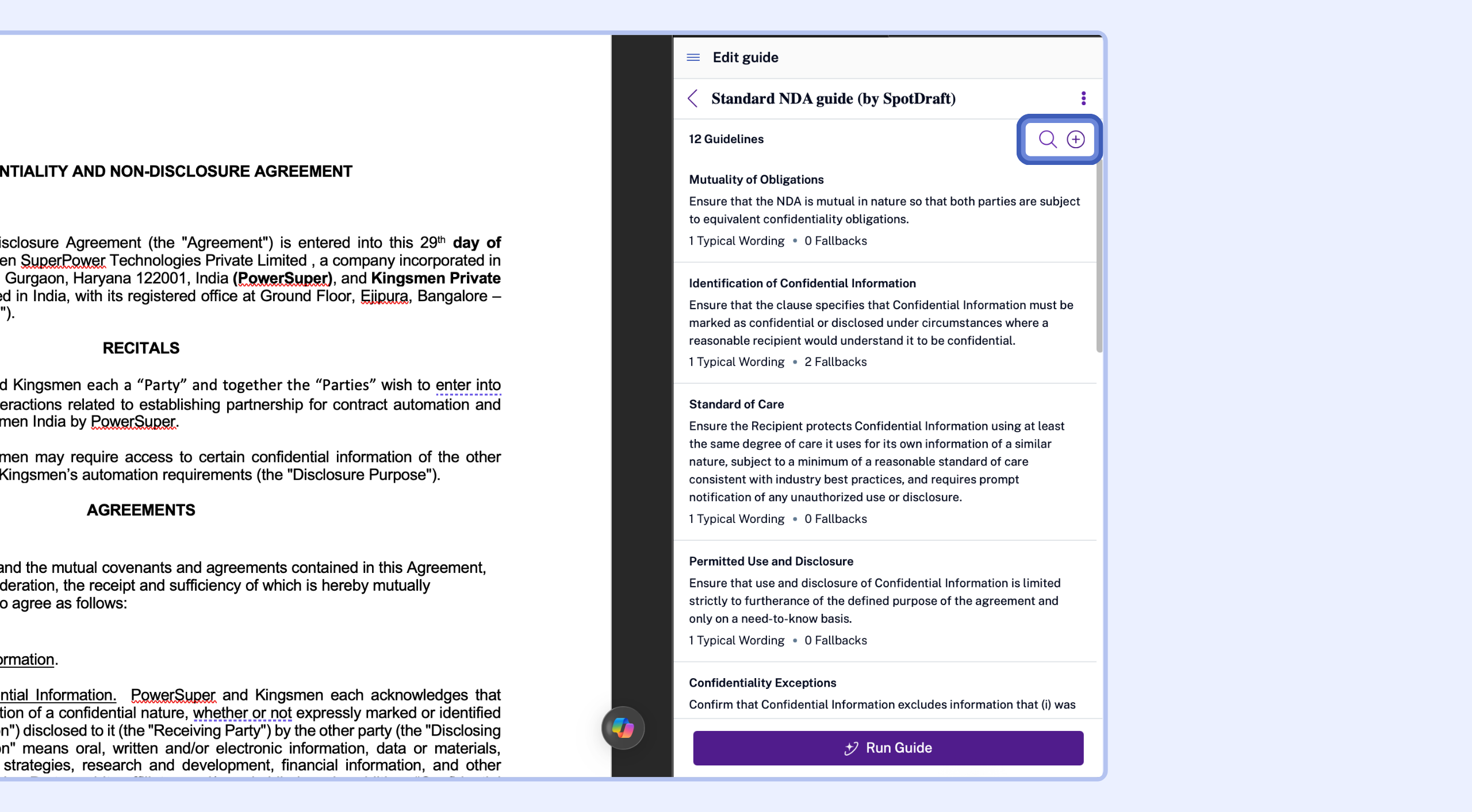
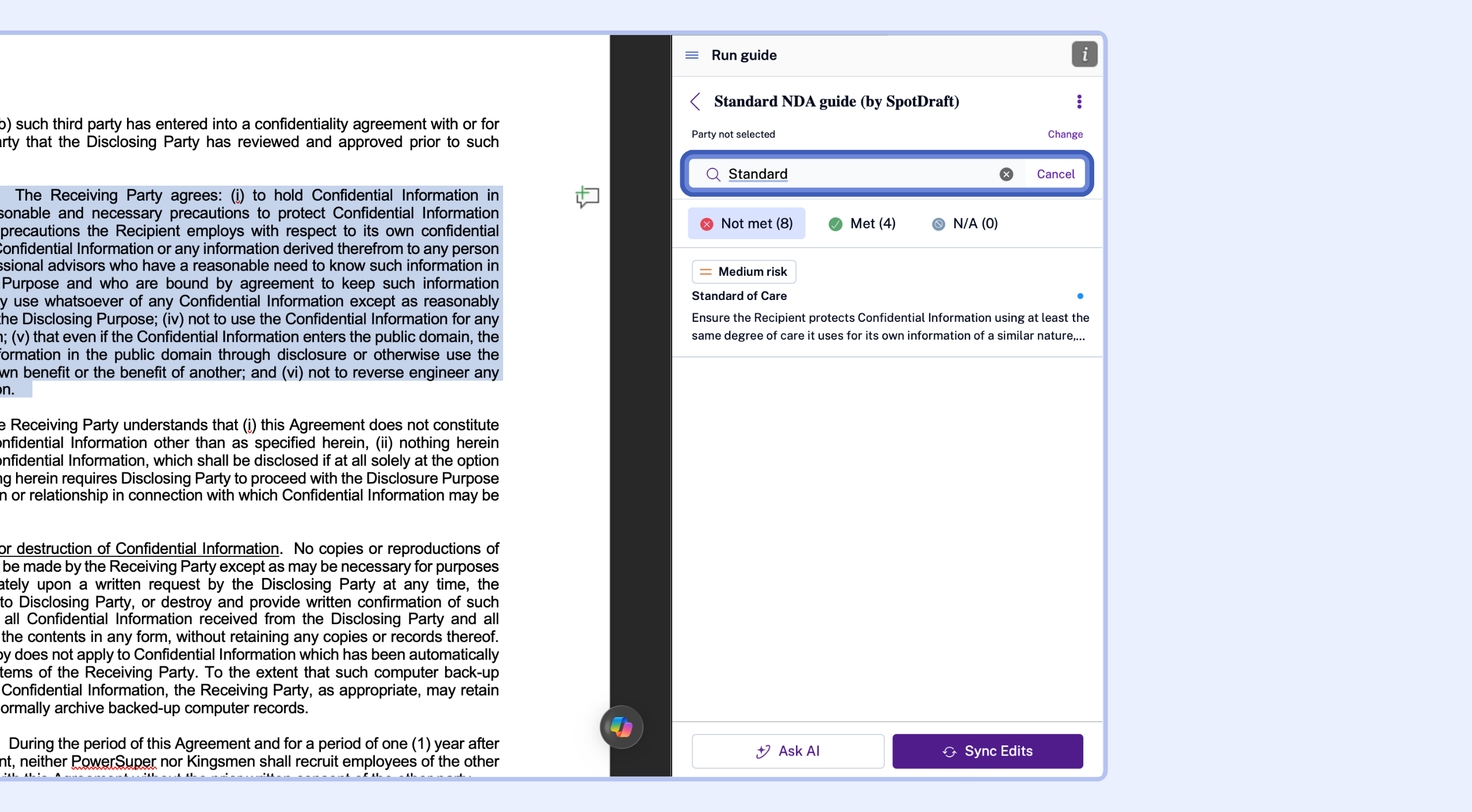
The search bar allows you to filter through your guidelines instantly, making it easier to navigate even the most comprehensive legal playbooks.
3. Optimized Plugin Header and Overflow Menu
To give you more room to view your results, we have cleaned up the DraftMate plugin interface.
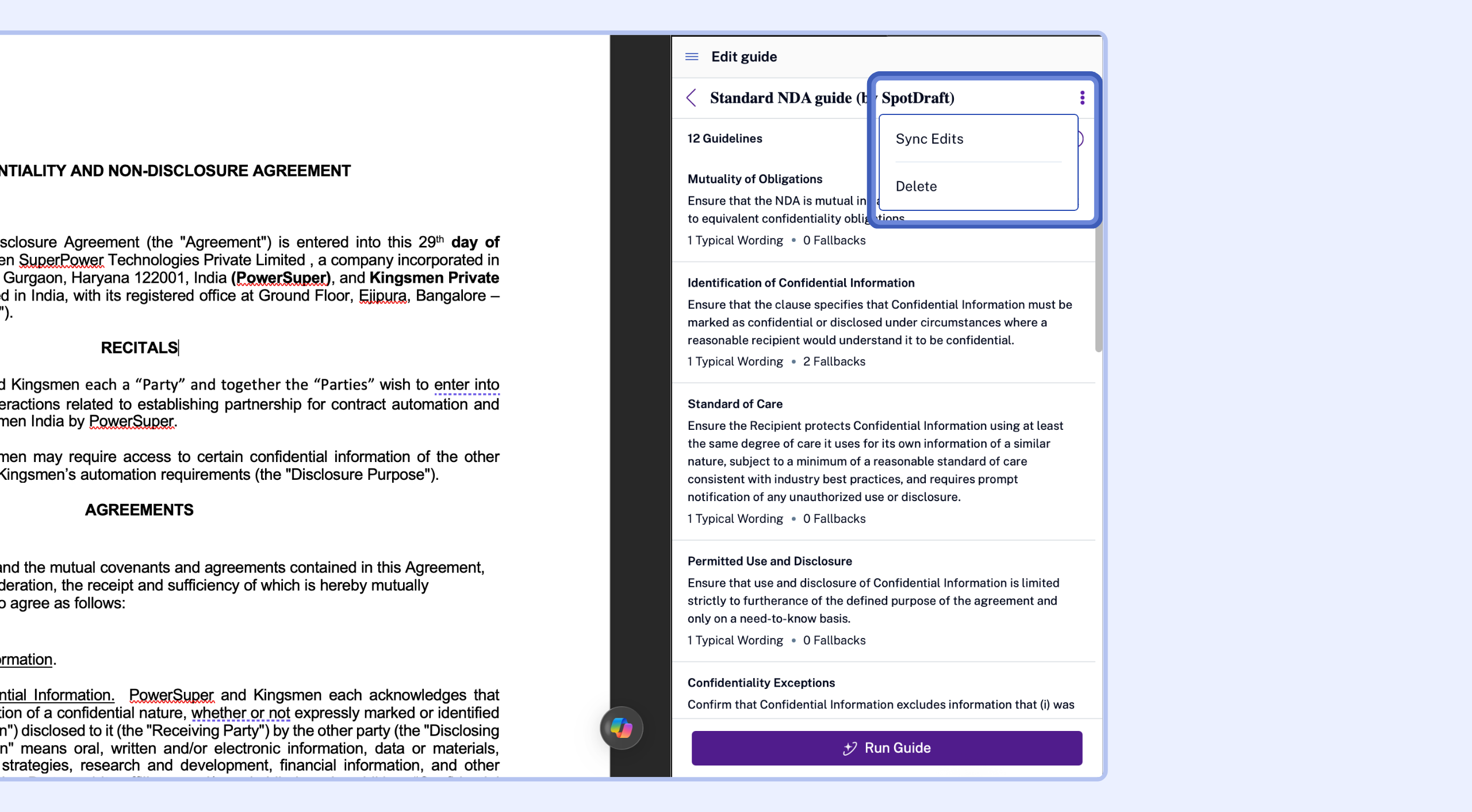
Additional administrative actions have been moved into the overflow menu (the three-dot icon). By simplifying the header, we’ve maximized the space available for your list of results.
4. Collapsible Guideline Details
When you click into a specific guideline, you’ll notice a cleaner, more focused view.
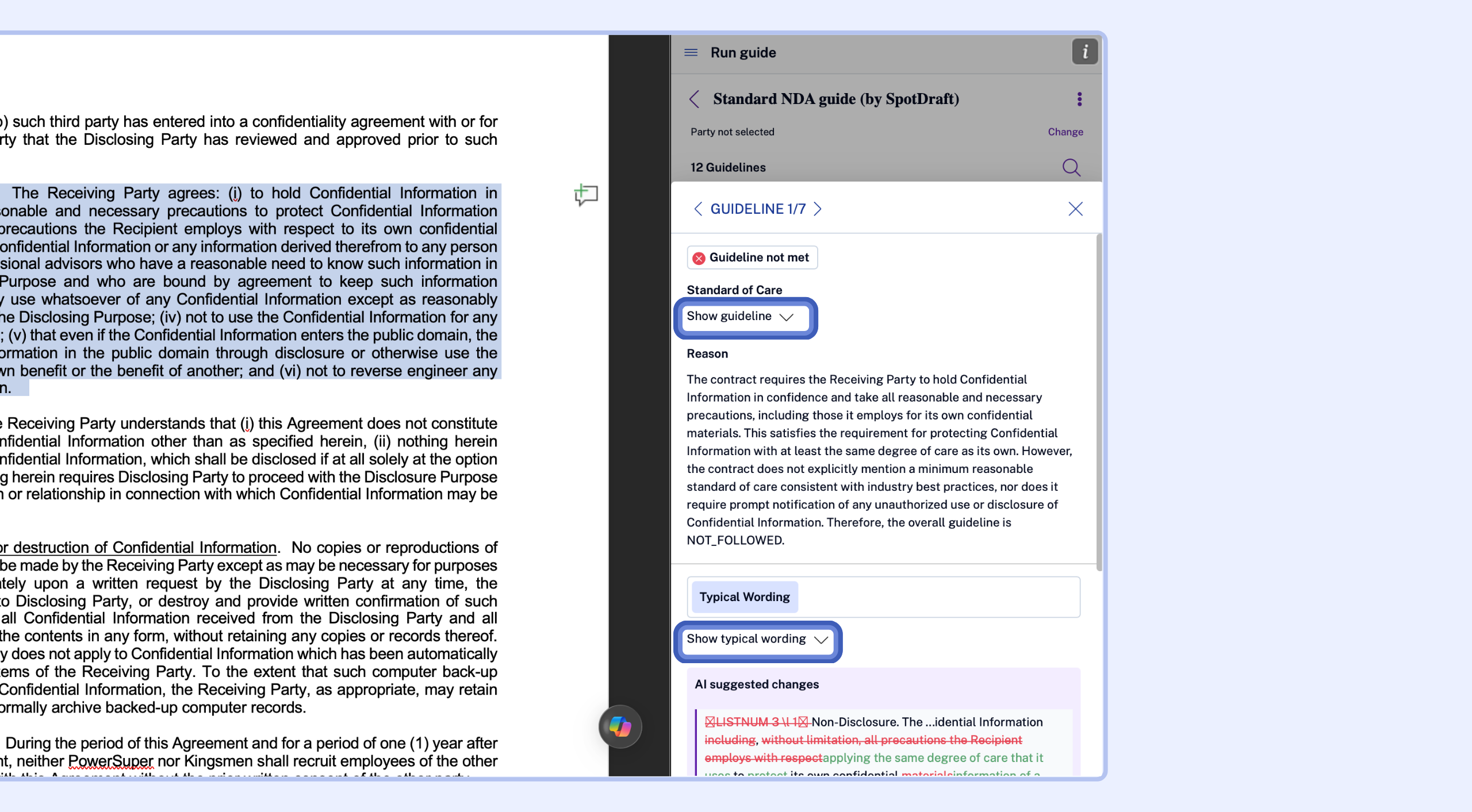
To keep your screen clear, we’ve collapsed the setup information (like the base Guideline text and your "Typical Wording") by default. You can easily expand these sections if you need to reference the original configuration during your review.
5. Consistent Experience Across the Platform
These UI and functionality improvements aren't just limited to the DraftMate plugin. You will see this same tabbed structure and layout optimization in the VerifAI section of your contract details page, ensuring a consistent experience whether you are reviewing inside your document or through the web portal.
Your workflow now remains uniform across all touchpoints, with dedicated views for "Not Met" guidelines and streamlined detail cards wherever you choose to work.