The Sidebar Chat Interface: An Overview
Last updated: February 10, 2026
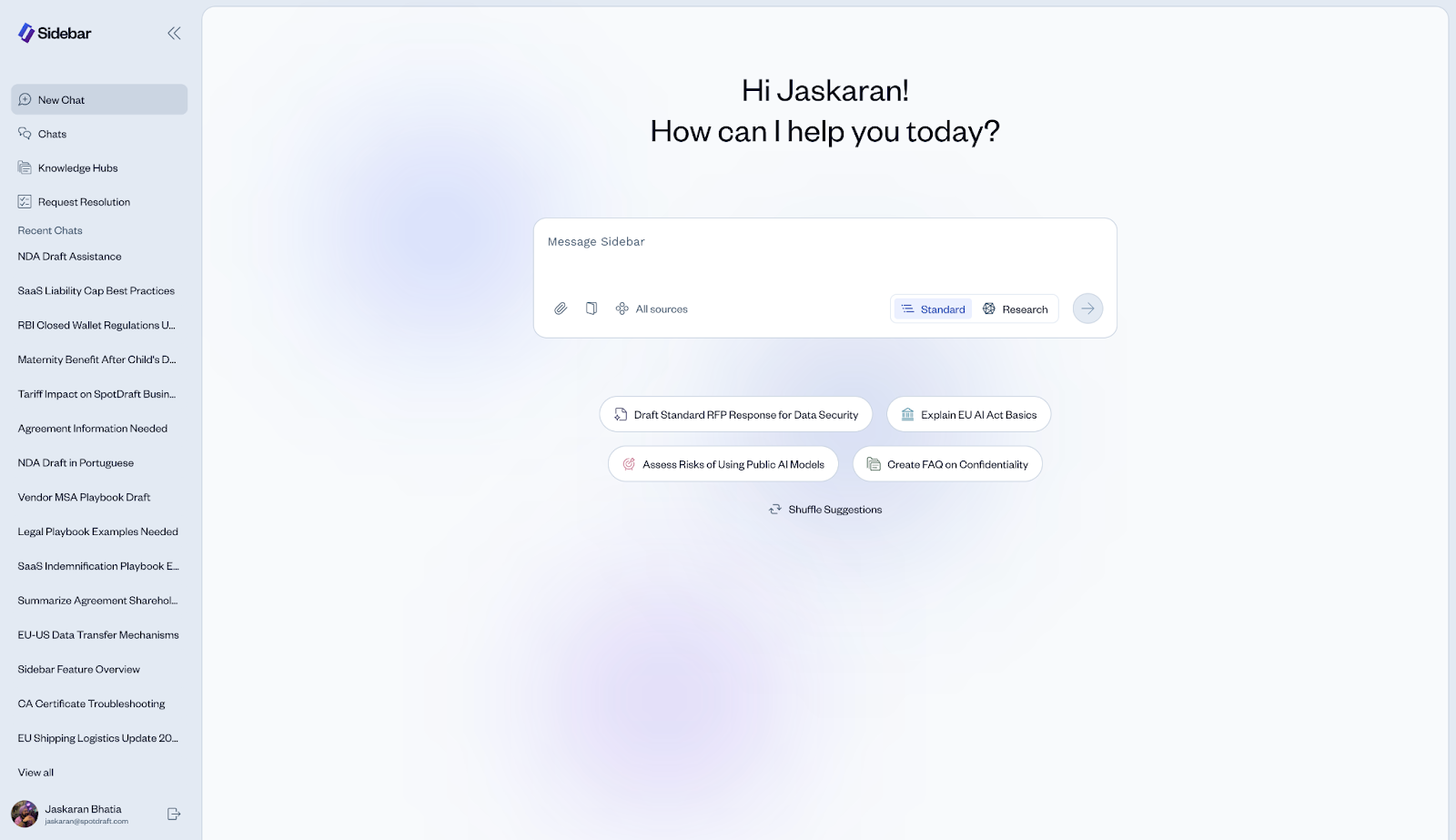
After logging in, you'll land on the main chat interface. This is where you will interact with your AI legal assistant to ask questions, review documents, and accelerate your work. This guide will give you a tour of the key components of your workspace.
Navigating Your Workspace
Your workspace is divided into two main sections: the Left Navigation Panel for moving between different features, and the Main Chat Area for your conversations.
1. The Left Navigation Panel
This persistent menu on the left side of your screen is your primary way to navigate Sidebar.
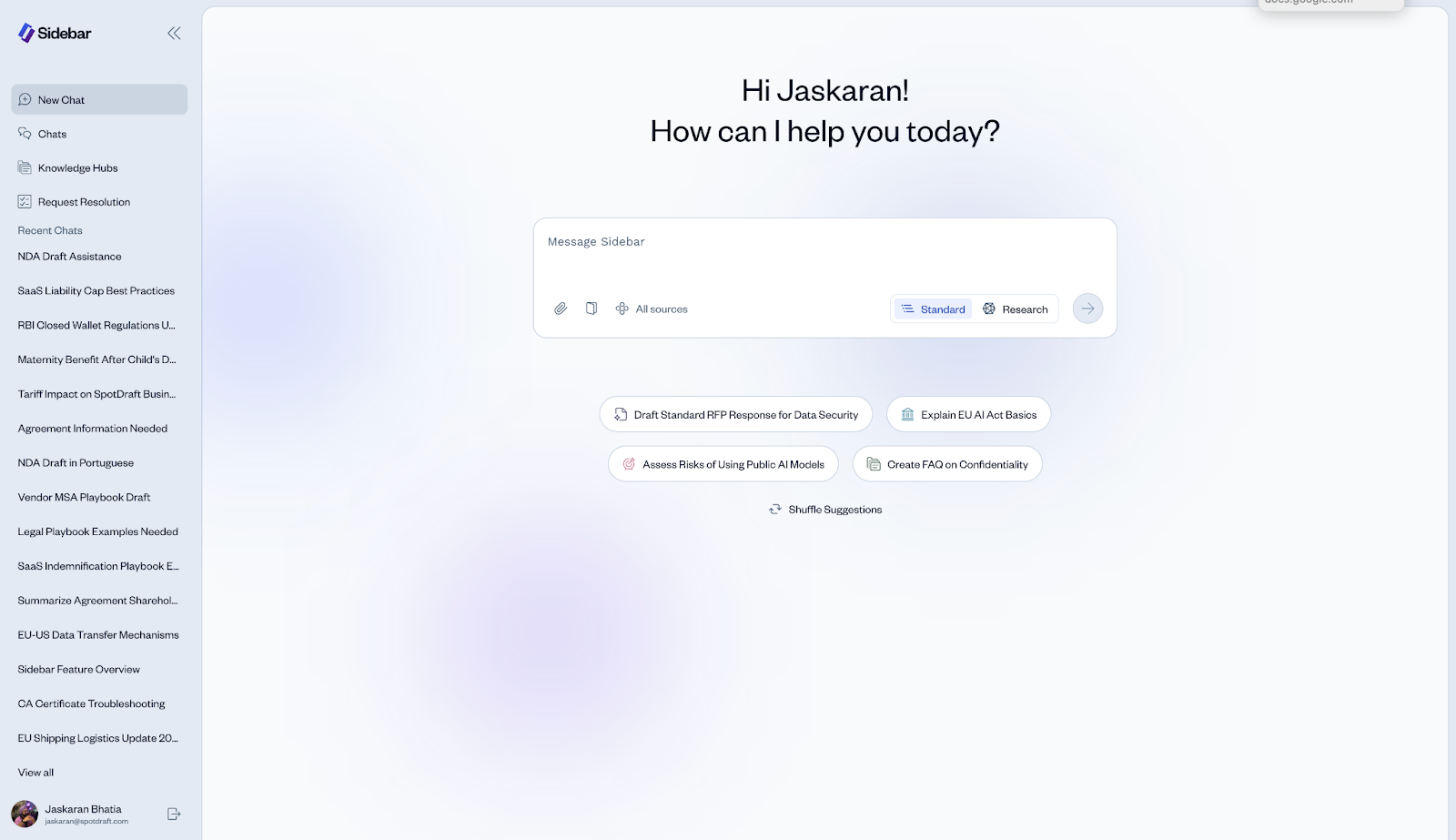
New Chat: Click this to start a fresh, clean conversation at any time.
Chats: Access your complete conversation history. Every chat is automatically saved here so you can refer back to it later.
Knowledge Hubs: This is where you manage the internal knowledge sources (like your company policies or standard contract templates) that you want Sidebar to use.
Request Resolution: Configure and manage Sidebar's ability to automatically handle legal requests from communication channels like Slack.
2. The Main Chat Area
This is the heart of the application. It's designed to be an intuitive, conversational space.
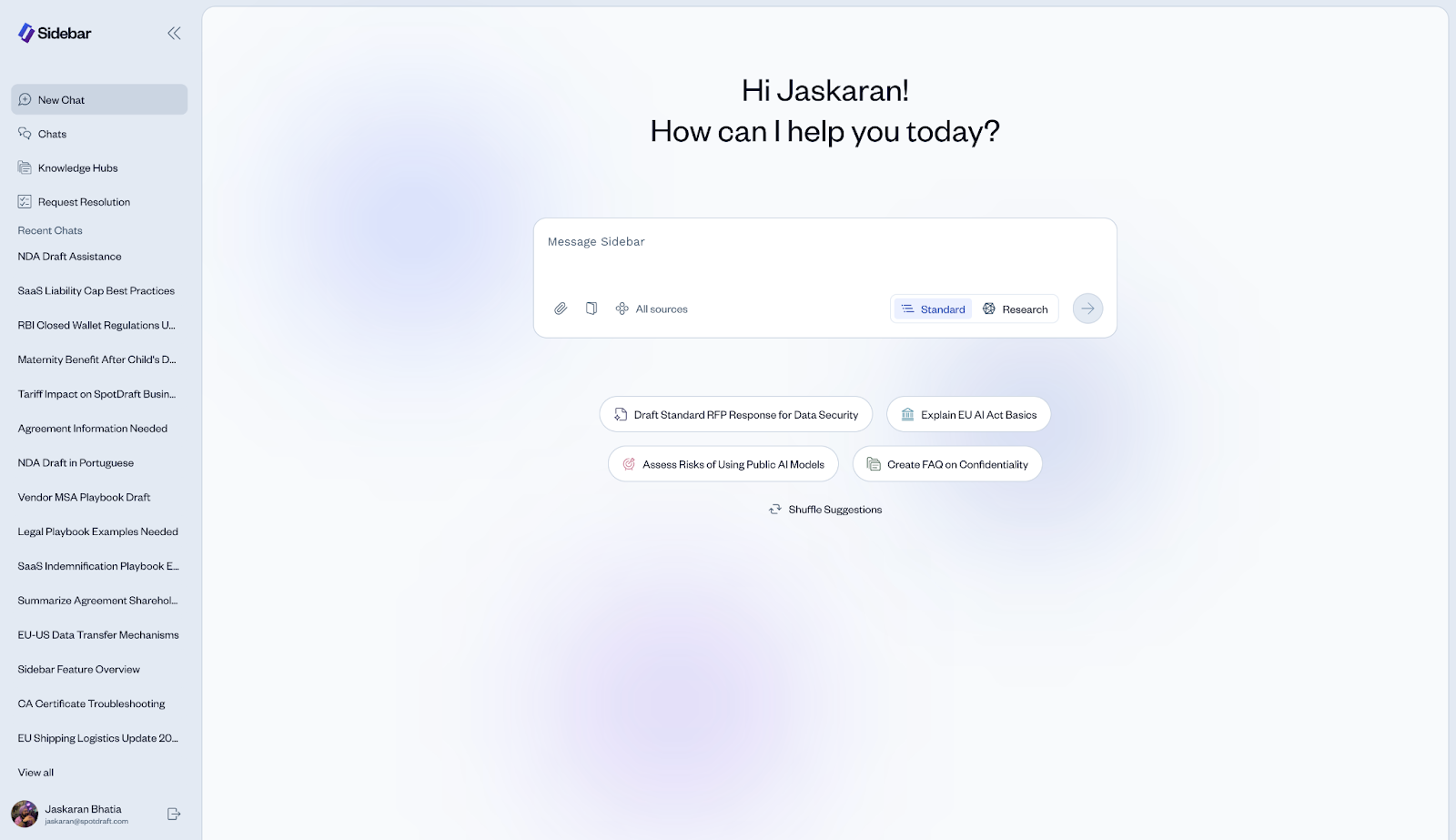
Message Box: The central input field where you will type your questions and instructions for Sidebar.
Suggested Prompts: Don't know where to start? We provide a few examples of what you can ask. You can click the Shuffle Suggestions button to see more examples.
The Chat Toolbar: Your Key Tools
Located just below the message box, this toolbar contains the essential controls for every query you make.
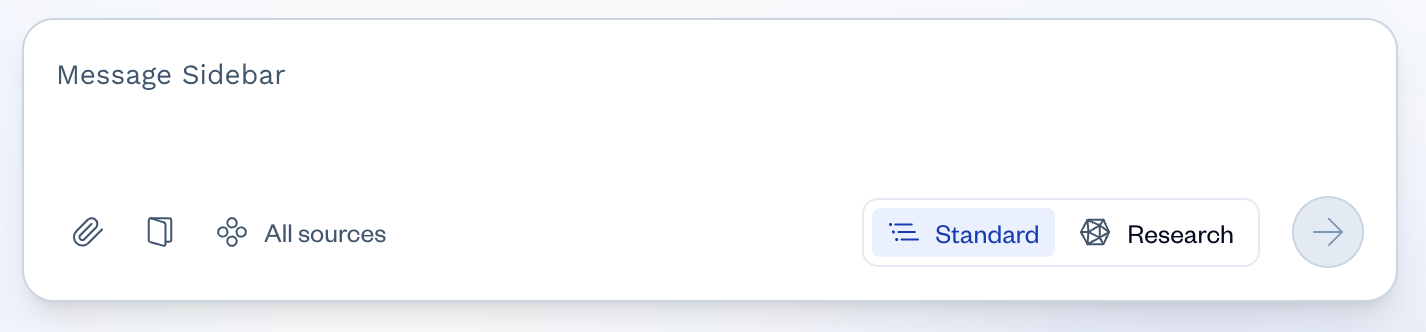
Attach File (Paperclip icon): Click this to upload documents (PDFs, DOCX) from your device for Sidebar to analyze, summarize, or review.
Prompt Library (Book icon): Access a library of pre-built, expert-crafted prompts for common legal tasks like contract analysis, policy drafting, and more.
Sources Selector: Control exactly which knowledge sources Sidebar is allowed to use for its response. You can limit it to specific Knowledge Hubs, the web, or legal databases.
Mode Selector (Standard / Research): Toggle between two powerful modes.
Standard: Optimized for speed and everyday questions.
Research: For complex queries that require a deeper, multi-step investigation and analysis.
Send (Arrow icon): Submit your prompt to Sidebar to get a response.
Pro Tip: Clicking on the suggested prompts is the best way to learn what Sidebar is capable of. It's a zero-effort way to see the AI in action and get ideas for your own work.
Troubleshooting & Common Questions
Where do my past conversations go?
All of your chats are automatically saved and can be found by clicking the Chats icon in the left navigation panel.
What is the difference between "Standard" and "Research" mode?
Standard mode is for quick, direct answers and simple tasks. Research mode is for complex questions where Sidebar needs to perform multiple searches, analyze findings, and synthesize a comprehensive answer. Think of it as the difference between asking a quick question and requesting a research memo.
How do I clear the chat and start over?
Simply click the New Chat button in the top left of the navigation panel. This will start a new, blank conversation while saving your previous one in your chat history.