Using Tables for Bulk Contract Analysis in Sidebar
Last updated: April 30, 2026
As an in-house lawyer, manually reviewing dozens of executed contracts to extract specific terms (like liability caps or termination clauses) is tedious and time-consuming. Tables in Sidebar solve this by allowing you to instantly extract, compile, and analyze key data points across up to 1,000 agreements simultaneously, turning unstructured contract data into a clean, actionable tracker.
You can generate custom extraction tables using conversational natural language or build them manually using intuitive UI controls. The AI automatically parses your selected documents, extracts the requested information based on your prompts, and populates a dynamic table that you can filter, verify, edit, and export.
Step-by-Step Guide
Creating a Table Using Natural Language
The fastest way to generate a bulk analysis report is to simply ask the General Legal Co-pilot.
Start a new chat with Sidebar
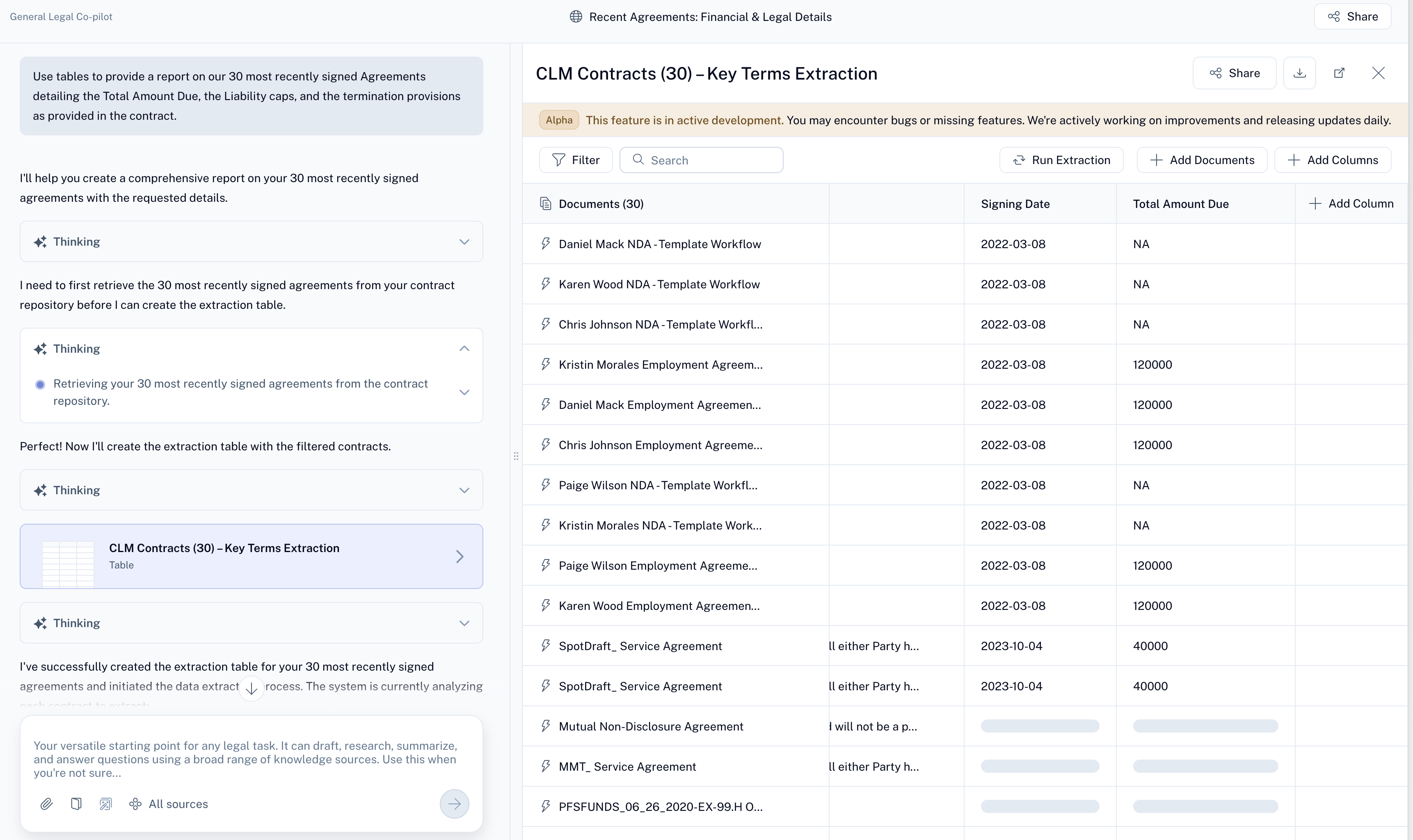
Type your request in the chat box. Crucial: You must use the word "tables" or "tabulate" so the AI knows to format the output accordingly.
Example Prompt: "Use tables to provide a report on our 30 most recently signed Agreements detailing the Total Amount Due, Liability Caps, and the termination provisions as provided in the contract."
By default Sidebar will search through your contract repository. You can also upload documents from your device.
For SpotDraft contracts, Sidebar will automatically filter your repository (e.g., fetching only "Executed" contracts sorted by execution date) and begin extracting the data.
Once the AI finishes thinking, click on the generated Table Artifact in the chat window to expand it and view your populated table.
Creating and Customizing a Table Manually
You can also build a table from scratch or add to an existing one using the user interface.
Navigate to the Tables section using the left-hand sidebar menu. Here, you will see a list of all tables you have created (both manually and via AI).
Open an existing table or create a new one.
To add a new extraction requirement, click the + Add Column button in the top right.
In the pop-up menu, provide a Label (e.g., "Termination provisions") and an AI Prompt telling the system exactly what to pull (e.g., "Extract the termination provisions").
Select the Data Type (currently supporting Text and Number) and click Add Column.
To add files to analyze, click + Add Documents. You can upload files directly from your device or import them from your SpotDraft repository by searching for the contract name, counterparty, or contract type.
Filtering, Verifying, and Exporting Data
Once your table is populated, you can easily drill down into the data and export it for external use.
Filter Results: Click the Filter icon above the table. Select the column you want to filter (e.g., "Logo Publicity Allowed"), choose your condition (e.g., "Contains"), type your value (e.g., "Yes"), and click Apply.
Verify Extraction: Hover your cursor over any extracted text in the table to view a tooltip explaining the AI's reasoning. For deeper verification, click directly on the document name in the left column to jump straight into the source contract.
Export Data: Click the Share icon in the top right corner of the table view to generate and download a CSV export of your current tracker.
Pro Tip: When writing natural language prompts, you can explicitly ask the AI to filter by metadata available in your repository. For example, specify "all NDAs with [Counterparty Name]" or "executed SaaS agreements from 2025," and the agent will automatically apply those filters before generating the table.
Quick note on Tables vs. Smart Data Capture (SDC)
With two powerful extraction tools available, it is important to know which one fits your specific workflow. While both extract contract data, they are designed for different stages of the contract lifecycle.
An ideal workspace uses both features in tandem: SDC provides a strong, predictable foundation for your standard contract data, while Tables acts as your flexible, on-demand tool to fill in the gaps for unique reporting needs.
Smart Data Capture (SDC) for Predictability and Governance: SDC requires initial metadata setup and is designed for structured, pre-planned fields. Use SDC for data points you always need to track across your CLM repository for easy governance and consistency.
Tables for Ad-Hoc Agility: Tables require no pre-planning. Use Tables for unstructured, unanticipated queries—the "one-off" questions or sudden reporting requests that your standard metadata wasn't built to capture.
Note: These two features are actively converging! In the future, you will be able to pull your existing SDC metadata directly into your Tables for deeper analysis, and export newly discovered Table columns back into your repository as permanent SDC metadata.
Frequently Asked Questions (FAQ)
How many documents can I analyze in a single table?
Currently, the Tables feature supports bulk extraction and analysis for up to 1,000 agreements at a time.
What happens if the AI pulls the wrong information?
You can easily verify the AI's work by hovering over the extracted data point to read its rationale, or by clicking the document link to view the exact clause in the original contract. You can always manually edit the extraction prompts to be more specific if the results are too broad. You can export the table as a CSV to make any offline edits. The ability to modify table cells is coming soon.
What data types can I use for my table columns?
Currently, you can set columns to extract "Text" or "Number" data types. Support for additional structured fields like "Currency" and "Date" is actively in development.
Can I pull a specific saved view from SpotDraft into a table?
While you can currently search and import documents from the SpotDraft repository manually or via natural language filters, the specific ability to directly import pre-configured "Views" from the repository is an upcoming feature.