Dropbox
Last updated: August 21, 2026
💡 In this article: You’ll discover a comprehensive guide on integrating SpotDraft with Dropbox for seamless contract management.
🛠 Integrating SpotDraft with Dropbox
Seamlessly save executed contracts to Dropbox for better organization and collaboration.
🚀 Introduction
Navigate the complexities of contract management with SpotDraft’s Dropbox integration, a solution designed to streamline and simplify your contract storage and management processes. This integration marries SpotDraft's advanced contract execution capabilities with Dropbox's renowned storage and collaboration environment, offering an automated and organized approach to contract management.
Upon the execution of a contract in SpotDraft, the system instantly generates a PDF version of the contract and methodically syncs it to your chosen Dropbox folder. This automation is not just about saving the document; it's a strategy for creating an organized, searchable, and manageable structure for all your contracts.
Key Features of the Integration:
Centralized Contract Repository: All contracts are securely stored in Dropbox, offering a unified location for easy access and management of your contract portfolio.
Automated File Organization: Configured during the integration setup, SpotDraft automatically creates a logical folder structure in Dropbox, typically following a format like Parent > Contract Type > Counterparty. Filenames are also systematically formatted as -, ensuring consistency and ease of search.
Efficient Sharing and Collaboration: Leverage Dropbox's robust sharing and collaboration features to enhance teamwork and streamline communication, while maintaining control over who has access to your contracts.
Automated Backups for Enhanced Security: Benefit from Dropbox's security features, complemented by SpotDraft’s automated backup system, ensuring that your contracts are not only stored securely but are also regularly backed up.
Personal & Team folders support: Dropbox integration supports both personal & Team folders.
This guide will walk you through the setup of this integration, enabling you to utilize these features for a more efficient and organized contract management experience
📝 Prerequisites
Before installing the Dropbox integration:
Takes 15-20 minutes to complete the integration
Have an organizational Dropbox account ready (e.g. integrations@company.com).This avoids re-authentication issues if an employee leaves.
Have SpotDraft - Admin or Integrations Access
Create a parent folder in your Dropbox root folder to contain contracts
Make sure to have sufficient space on Dropbox to auto upload executed contracts.
Ensure "Dropbox" integration is enabled in your SpotDraft workspace.
Decide on the location (root folder) & parent folder
Decide on the subfolder structure and file naming format (details below).
Folder Structure and File Naming:
When configuring the integration, you will define:Subfolder structure within the parent folder, such as:
Parent > Counterparty > Contract Type
Parent > Contract Type > Counterparty
Parent > Counterparty
Parent > Entity > Counterparty
File naming format:
<contract_title>, <contract_type>, <entity_name>, <counterparty_name>, <reference_id>, <ddmmyyyy>, <mmddyyyy>, <yyyymmdd>
⚙ Installation & Configuration
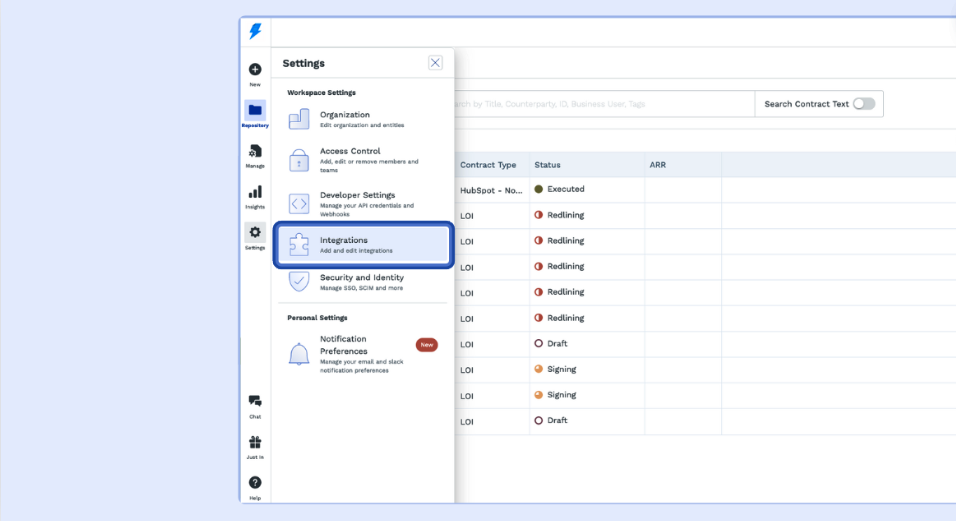
1 - Login to your SpotDraft workspace and navigate to Settings → Integrations.
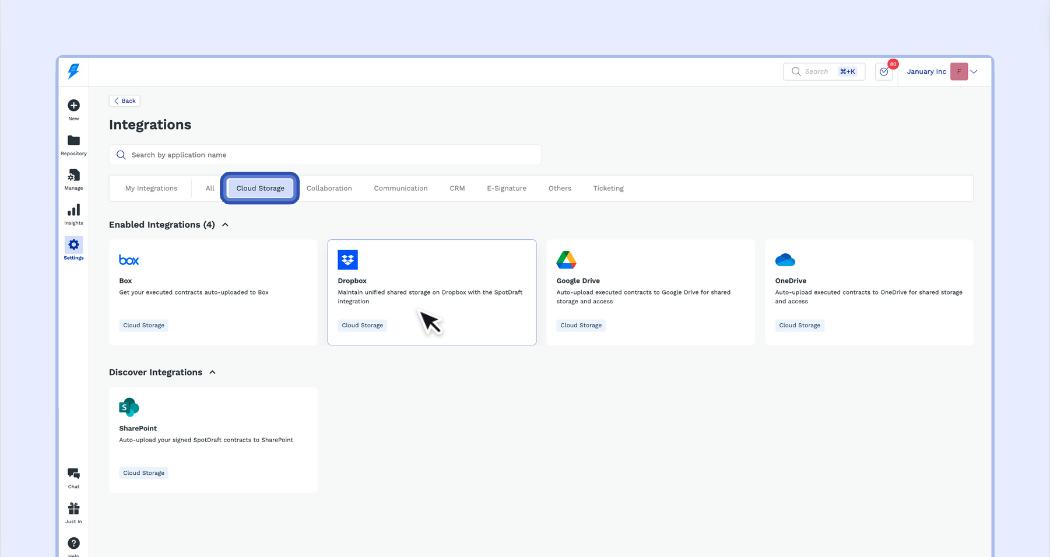
2 - Open the Cloud Storage section and select Dropbox.
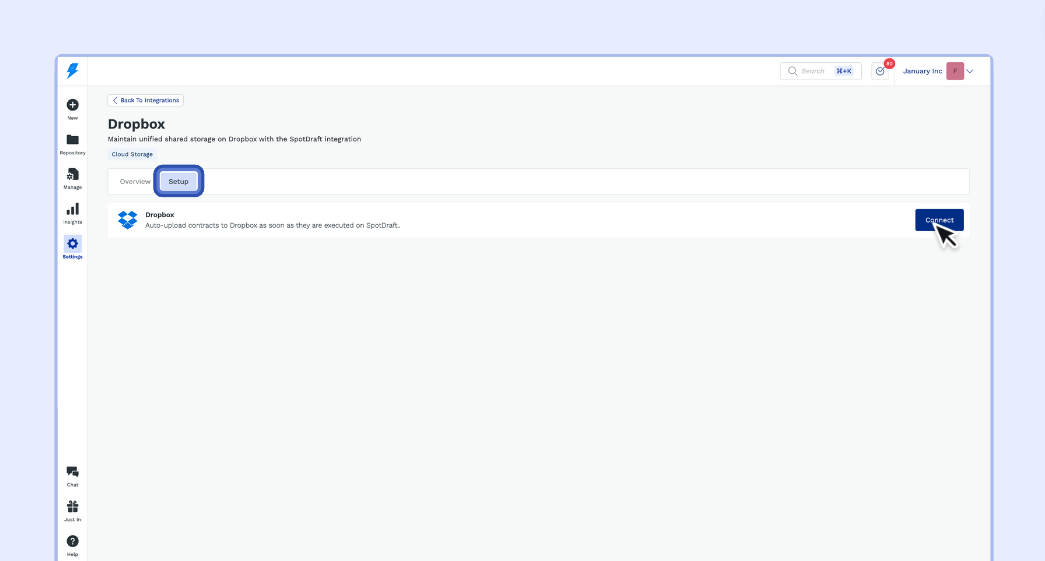
3 - Open the Setup section and click on Connect.
Follow the Setup wizard to:
4. Authenticate your Dropbox account.
4.1 Click New authentication.
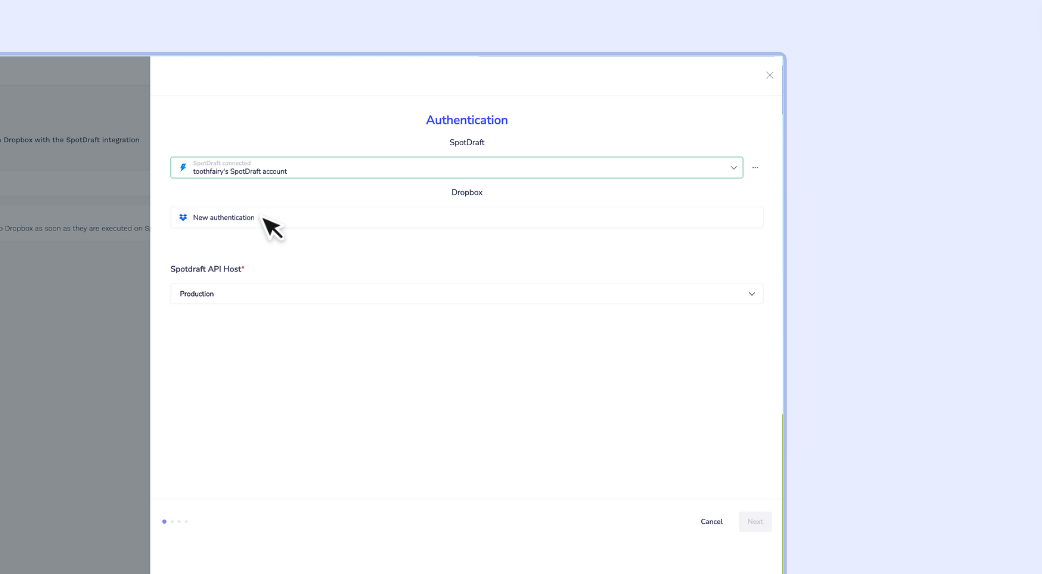
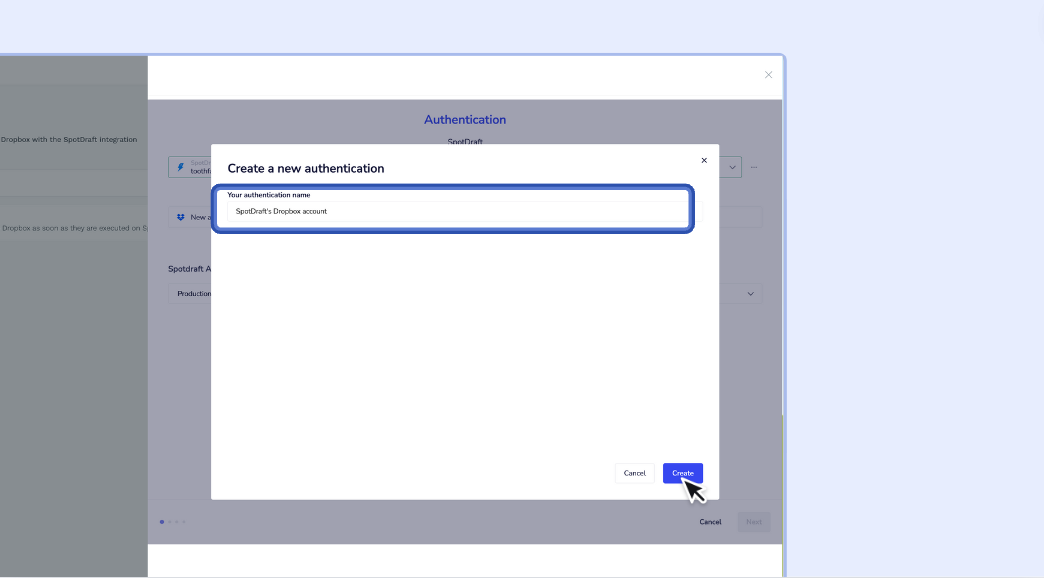
4.2 - Set the authentication name then click the Create button.
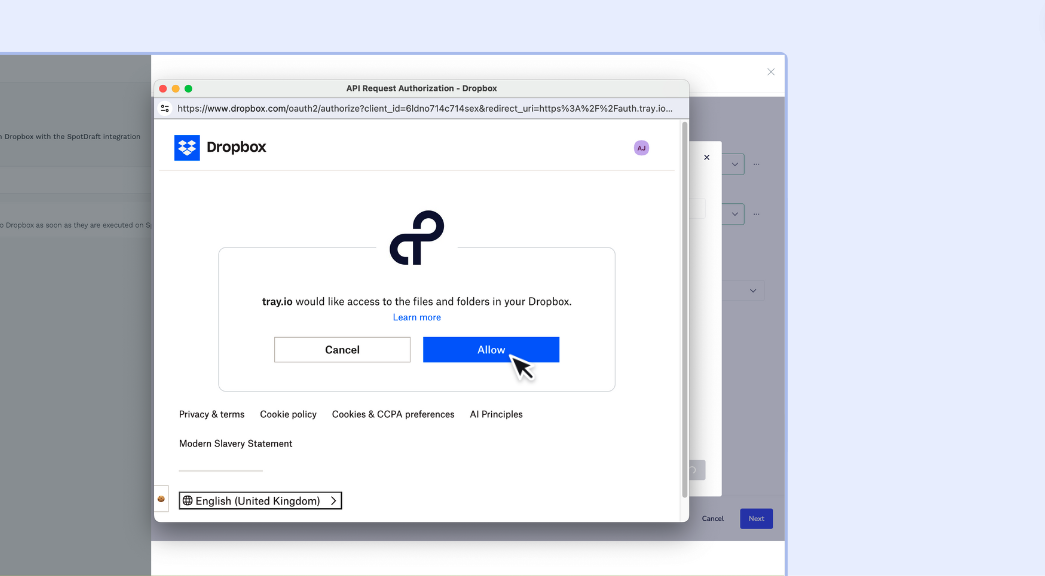
4.3 - 1.3 - You will be redirected to Dropbox Authentication screen in popup or new tab. Select the Dropbox account to use for the Integration and proceed by clicking Continue to allow access.
Note. SpotDraft uses Tray.io as an Integration layer, on behalf of SpotDraft it will need access to see, upload, delete & download your files. This will allow SpotDraft to upload executed files properly into designated folders as per your preference. This is expected & secure.
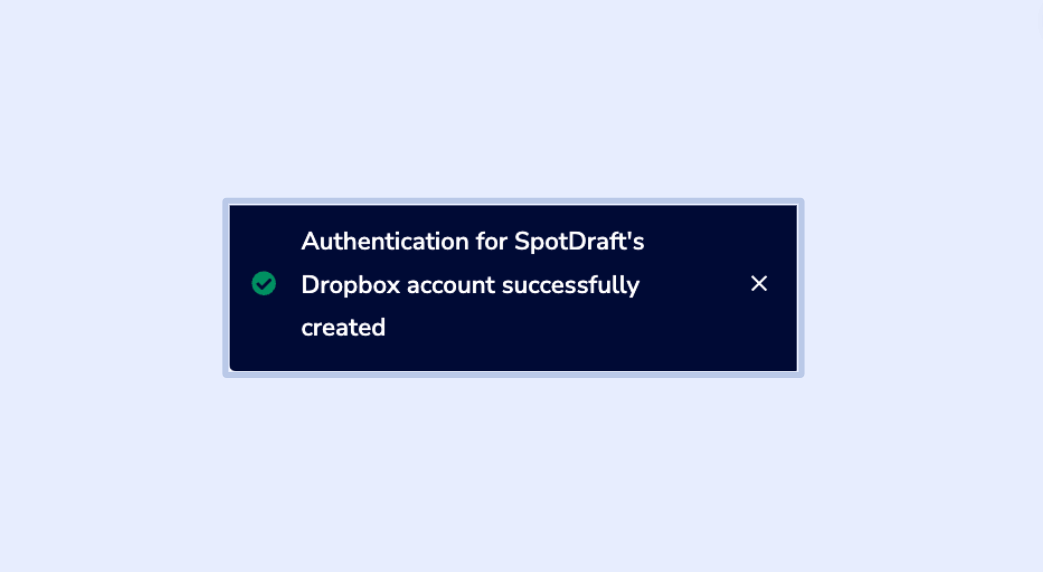
Note. A ‘success message’ will appear on SpotDraft confirming authentication between SpotDraft & Dropbox is complete
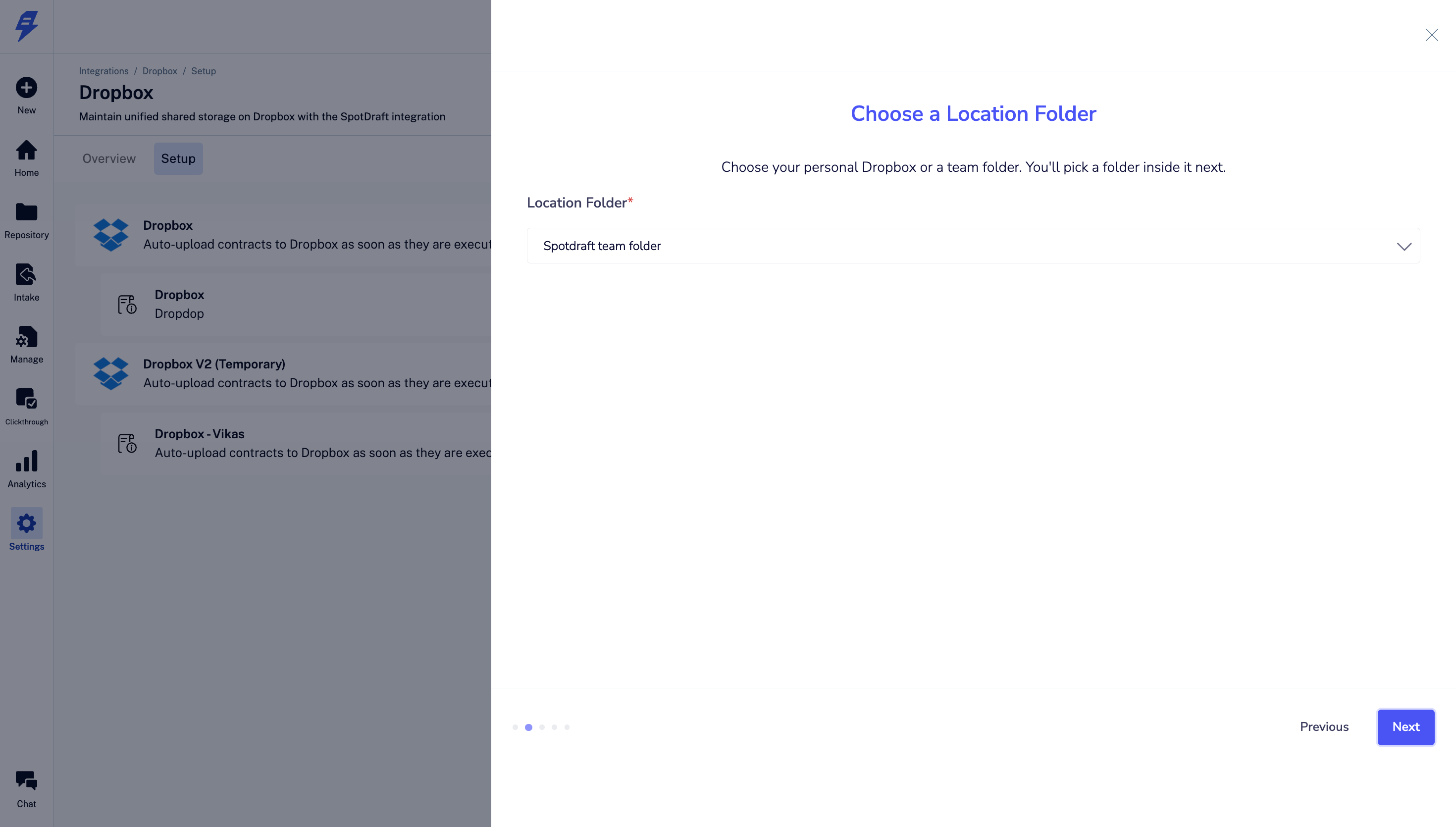
5. Select the location (root folder)
5.1 Your Dropbox may have multiple root level personal and team locations. Select the right folder on this screen. Based on the selection, the folders insider this location (root folder) will show up on next screen.
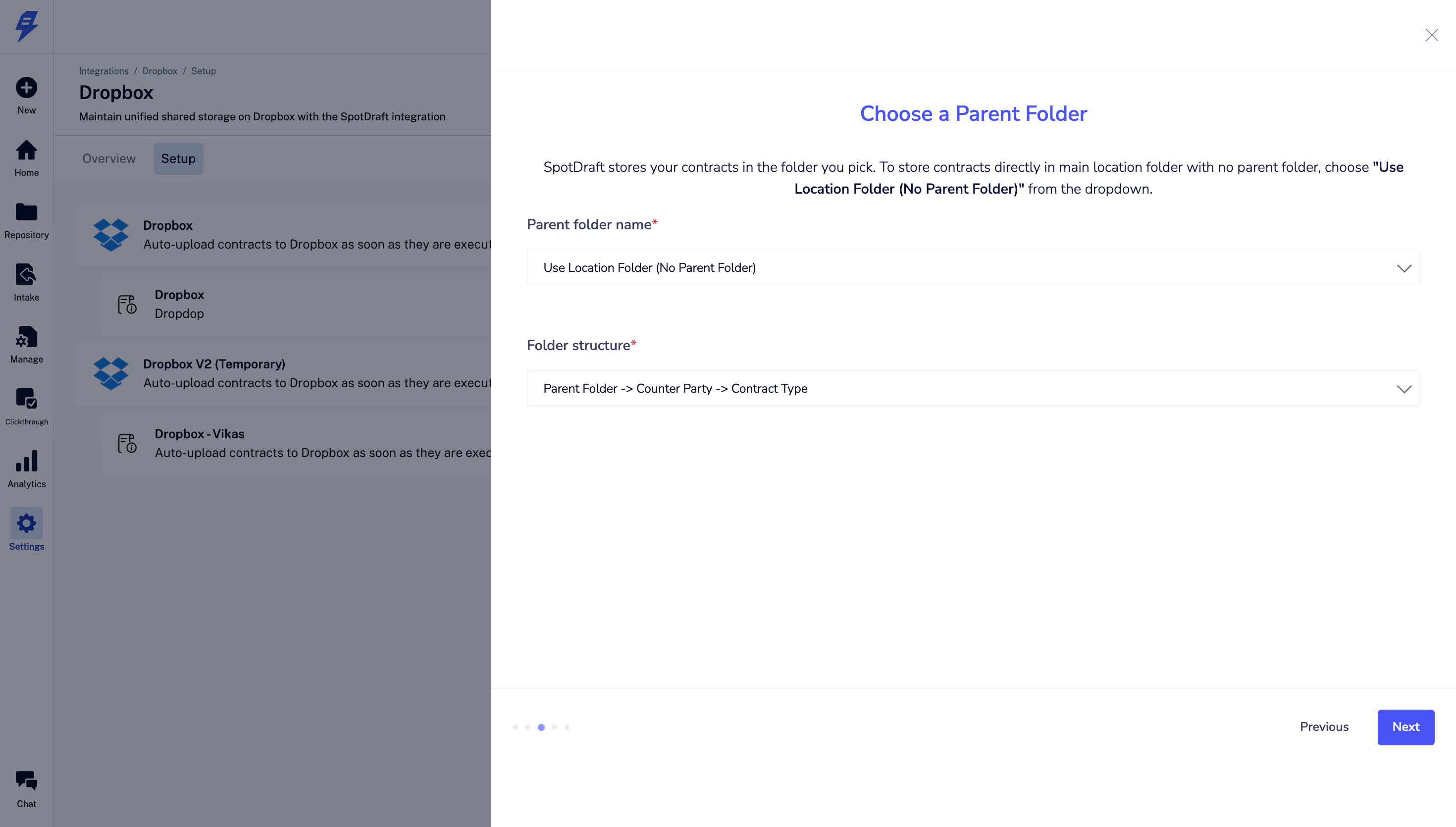
6. Folder Structure where the contracts will be saved
6.1 Select the folder insider your location (root) folder.
Two options here:
You can actually choose a folder under your location (root folder)
Else, if you want to store all your contracts directly to your personal or team location folder, select "Use Location Folder (No Parent Folder)" from the dropdown.
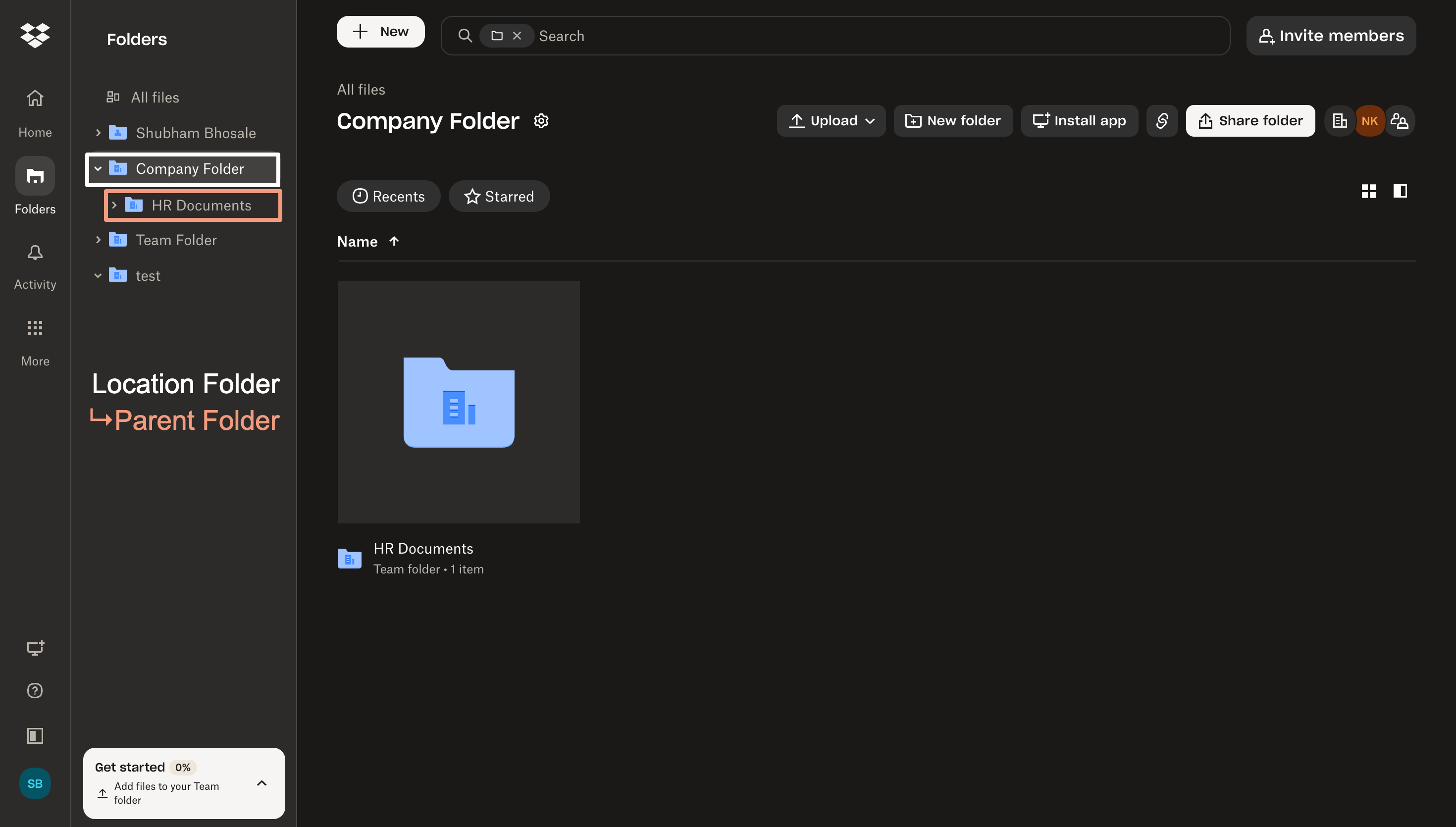
Example reference on deciding location & parent folder:
Once you login to your Dropbox, it shows a hierarchical structure, here's what to consider as location & parent folder.
Location folder: Shubham Bhosale, Company Folder, Team Folder & Test
Parent folder: HR Documents
6.2 - Choose the Folder Structure, from the options available & click next
Parent folder is your main selected folder from the above step 6.1.
SpotDraft can create sub folders for each contract type, counterpaties, entity
The structure would then become parent folder & sub folders as per structure selected
e.g. Parent folder > Contract Type > Counterparty (i.e. Signed Contracts > NDA > Acme Corp)
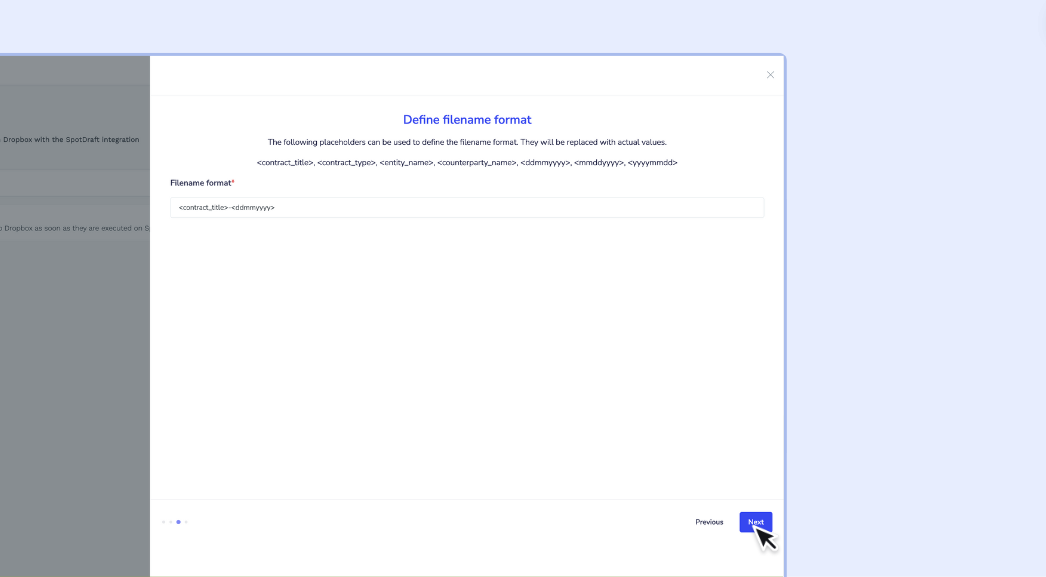
7. Define the contract filename format
7.1 Select the contract filename format by first choosing the contract label and then the date format using a hyphen between them.
SpotDraft can dynamically define file name based on selected labels
Each label acts as a variable
Available labels: <contract_title>, <contract_type>, <entity_name>, <counterparty_name>, <reference_id>
Uploaded date can also be passed in filename
Available date format: <ddmmyyyy>, <mmddyyyy>, <yyyymmdd>
e.g. Filename can be <counterparty_name> <contract_type> <ddmmyyyy> = Acme NDA 21082026.pdf
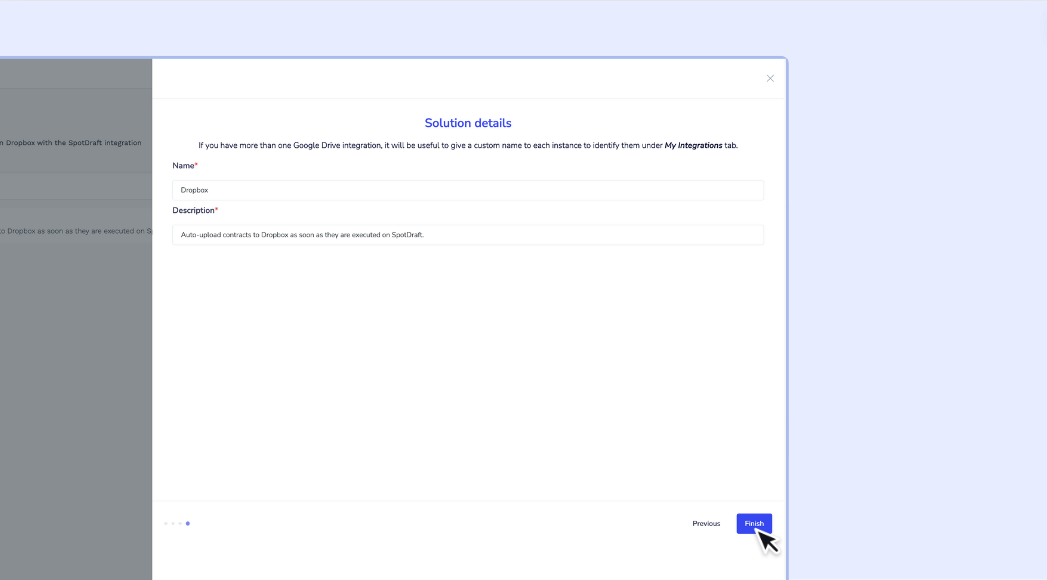
8. Set the ‘Solution Details
8.1 - Enter the Name and Description or leave the defaults & click finish.
9. After finalizing the wizard by clicking Finish, you will be directed back to the Dropbox Integration page. A confirmation message stating 'Installed Successfully' will appear.
9.1 - To complete the process, simply click the Connect button.
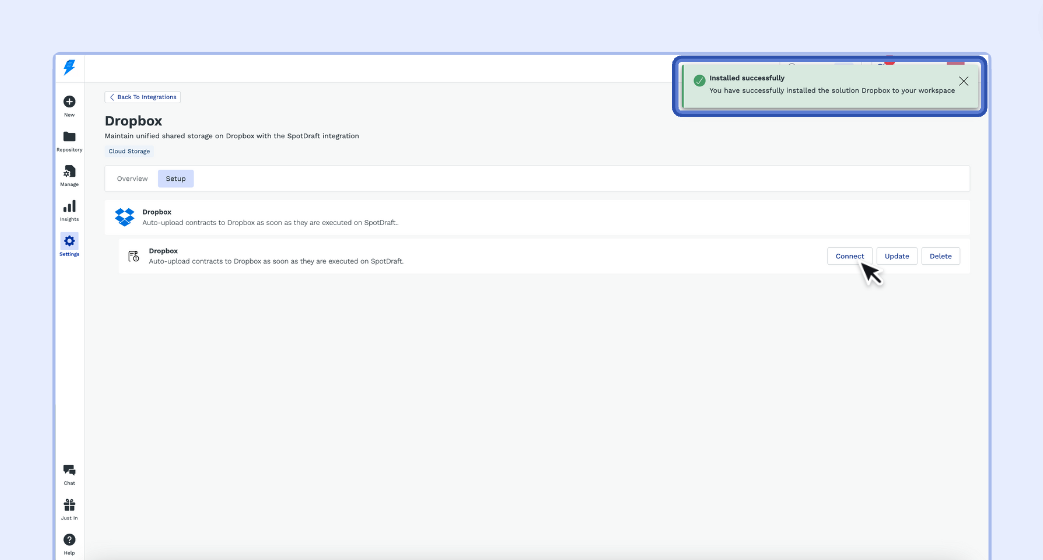
🎉 Congratulations. The integration is now complete and all of your executed contracts will automatically synchronize to your Dropbox.
✅ Verification
Once you have installed the Dropbox integration, verifying it is straightforward:
1 - Execute a test contract within your SpotDraft workspace, completing all required fields and signatures.
2 - In your Dropbox account, navigate to the parent folder you designated for SpotDraft contracts e.g. Signed Contracts.
3 - You should see a new subfolder created with the naming you specified during setup
e.g.
Parent > Counterparty > Contract Type
Signed Contracts > Supplier ABC > NDA
4 - Navigate into the subfolders. You will find a PDF file for the executed test contract.
You should see a PDF version within 5 minutes of the executed test contract you completed.
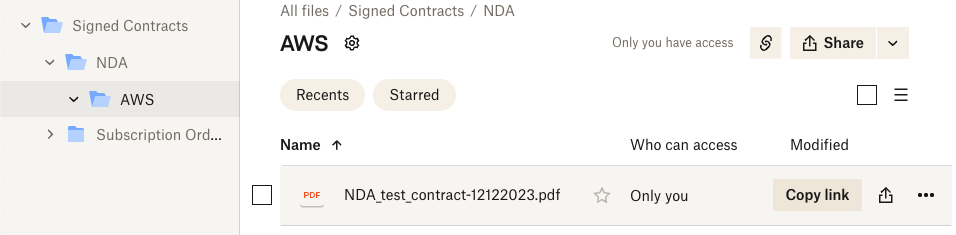
5 - Verify that:
The contract PDF is saved in the subfolder structure you configured.
The file is named according to the naming format you specified during setup.
Opening the PDF displays the fully executed test contract.
This validation process will confirm that your integration has been properly set up and contracts are automatically saved to your Dropbox in line with the configuration set.
Additional options will be visible post integration setup is completed:
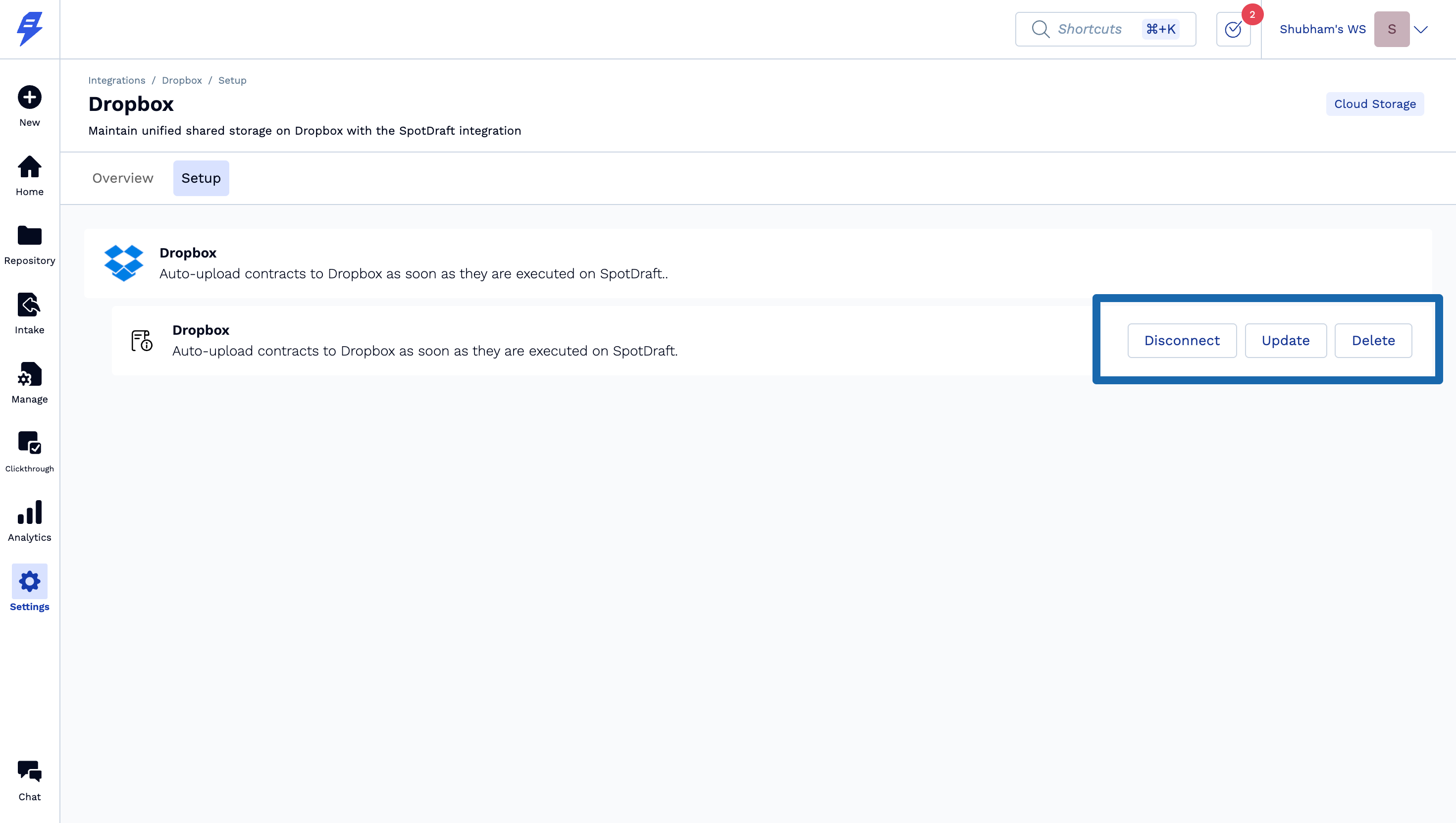
Update - Make changes in any of the integration setup steps.
Disconnect - Temporarily stop sending files from SpotDraft to Dropbox.
Delete - Permanently delete the integration from SpotDraft.
Limitations
One Dropbox Integration is supported per SpotDraft workspace.
Only PDF file format can be sent from SpotDraft to Dropbox.
This is one way integration where only SpotDraft can send files to Dropbox. Any changes made in the uploaded file on Dropbox will not reflect back in SpotDraft.
As of now there are no alerts for successful or failed document upload to Dropbox. Please make sure to keep an eye on Dropbox files to avoid any integration failures.
Dropbox supports Folder name up to 255 characters.
Dropbox supports Filename up to 255 characters, including the file extension (e.g.,
.pdf).
💬 FAQs
Q: What is the maximum supported file size that can be uploaded?
A: Currently we support a maximum file size of 6MB.
Q: I don't see contracts in my Dropbox folder.
A: Potential causes:Incorrect Dropbox account authentication
Missing parent folder in the Dropbox root
Parent folder in "Shared" instead of "All Files"
Enough space is not available in Dropbox
Q: Can I use special characters in filenames?
A: No, they will be removed per Dropbox conventions.
Q: What permissions are required for the Dropbox account?
A:The account will need read/write permissions to add files to the folder.
Q: How can I customize the folder structure?
A: When setting up the integration, you can choose between different folder structure options to meet your needs as detailed in the prerequisites.
Q: Can I configure subfolders within the parent folder?
A: Yes, the integration supports uploading to pre-configured subfolder structures as detailed in the prerequisites.
🏁 Conclusion
With Dropbox integration set up, you can now enjoy a smoother and more organized contract management process. Your team will save time spent on administrative tasks, and have confidence that executed agreements are safely stored and accessible.
👉 Remember, should you encounter any challenges or require further assistance, our team is always ready to support you. We're committed to ensuring your continued success with this powerful integration.
📚 Additional Resources
Engaging Your Customer Success Manager for Maximum Value: Discover how to leverage your CSM's expertise to get the most out of your SpotDraft subscription.
Integration Guides for Cloud Storage: Explore our guides for integrating SpotDraft with SharePoint, Google Drive, Box and OneDrive, providing insights into other cloud storage integrations available.