Creating Detailed, Playbook-Powered Guides in VerifAI
Last updated: March 30, 2026
This guide explains how to use the enhanced VerifAI Guides to build a comprehensive, multi-layered playbook that reflects your organization's real-world negotiation strategies.
What are Detailed Guides?
Previously, VerifAI guidelines were limited to single-line instructions, which forced legal teams to oversimplify complex playbook rules.
The new, detailed Guides allow you to capture the full nuance of your legal playbook directly within VerifAI. You can now define not just the core rule, but also your company's preferred standard language (Typical Wording) and approved alternative clauses (Fallbacks).
This makes VerifAI's AI-powered review more accurate and ensures its suggestions are perfectly tailored to your specific contracting standards. Best of all, your existing guides are fully backward compatible and will continue to work as they always have.
How to Create a Guide from AI
Open Microsoft Word or OnlyOffice Editor:
Open an existing document from your computer using Microsoft Word.
OR Open a contract document from SpotDraft using the "Edit with Microsoft Word for Desktop" or "Edit with OnlyOffice Editor" option.
Navigating to New Guide flow:
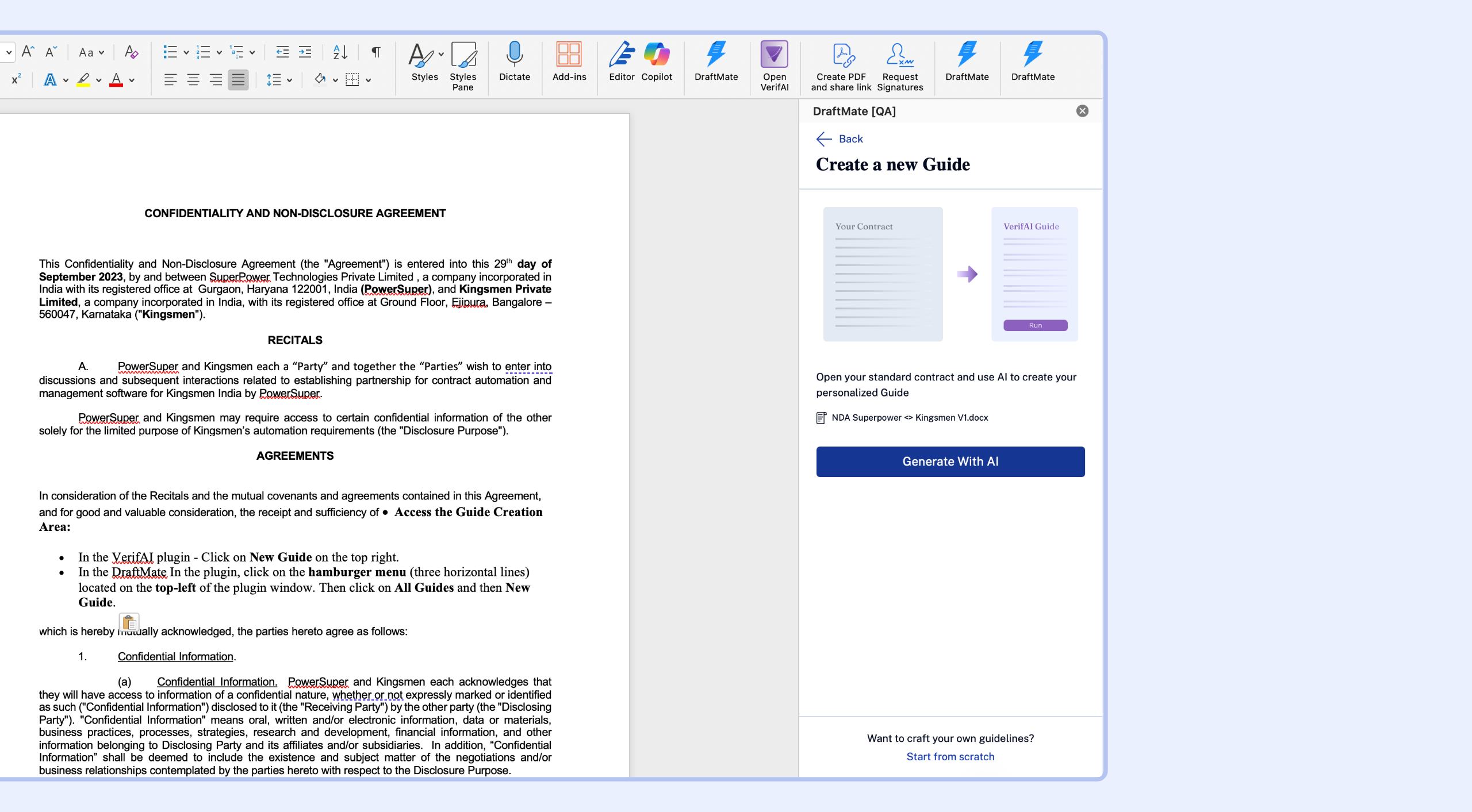
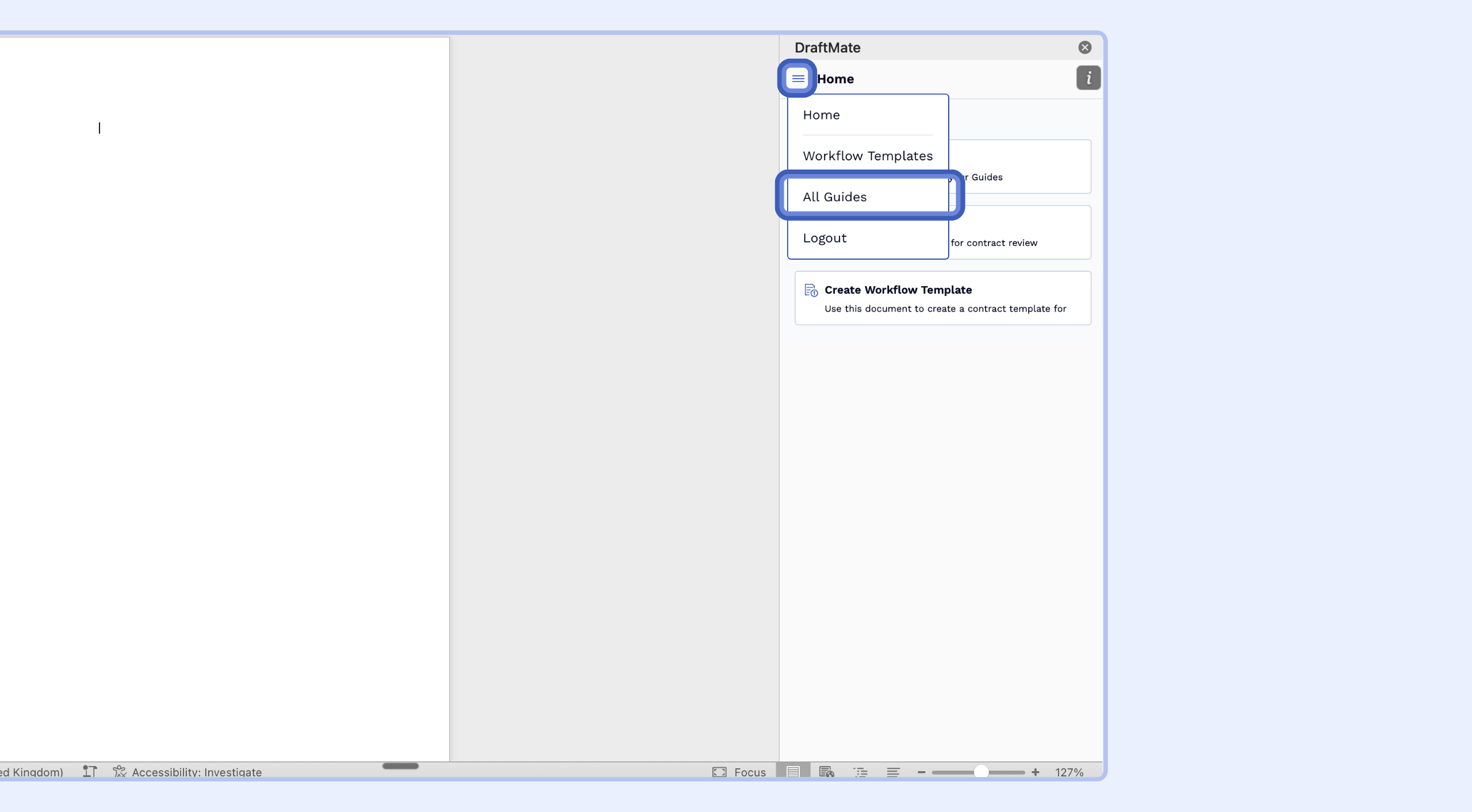
In the DraftMate, click on the hamburger menu (three horizontal lines) located on the top-left of the plugin window. Then click on All Guides and then New Guide.
Generate with AI: Let VerifAI analyze the contract that is open on Ms Word and suggest initial guidelines for the Guide.
VerifAI will analyze the contract open in Microsoft Word or OnlyOffice Editor and generate suggested guidelines.
VerifAI identifies key elements in the contract and creates guidelines based on them. Determine whether these guidelines are relevant and important for your organization's review process. It is crucial to review these guidelines manually and edit them as necessary.
How to Create a Detailed Guideline
Navigate to Your Guides
Open the VerifAI or DraftMate add-in in Microsoft Word or OnlyOffice Editor.
For DraftMate plugin, click on the hamburger menu next to the header and select 'All guides' option from the dropdown. (*This feature is not available in DraftMate right now, will be available in DraftMate soon)
Select the Guide you wish to update.
Tip: To edit or delete an existing guideline, simply click anywhere on the guideline's row. The three-dot menu has been removed for faster access.
Add a New Guideline
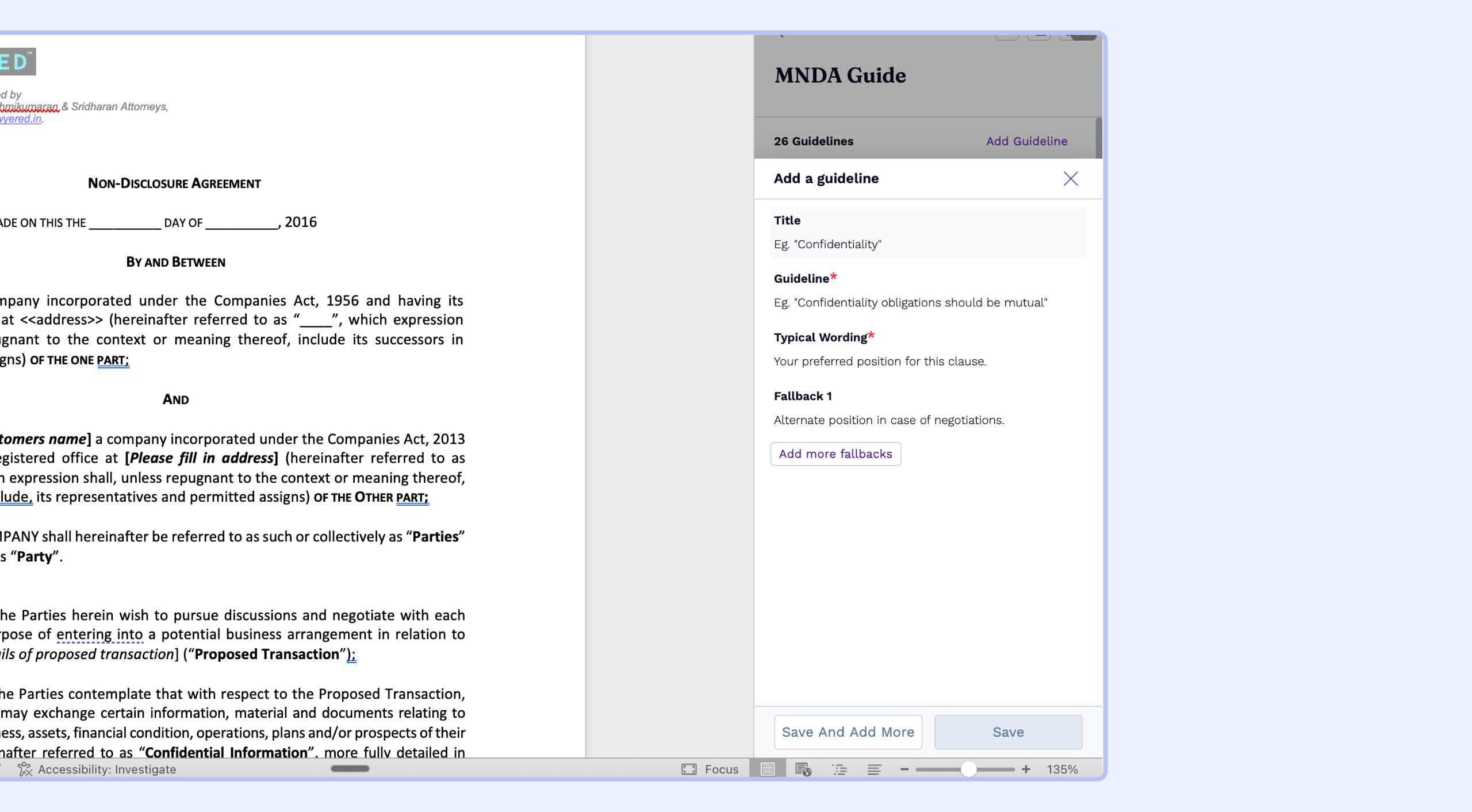
Click Add Guideline. This will open the new, structured form.
Fill in the Guideline Details
Here’s what each field is for:Title: Give your guideline a short, clear name for easy identification (e.g., "Term and Termination," "Governing Law"). This title will appear in the review results.
Guideline: Describe the rule you want VerifAI to check for. You can be as detailed as you need. If you write a complex rule with multiple conditions, VerifAI's AI will automatically break it down into sub-checks for a more accurate review.
Example: "The Agreement must have a fixed Term of two (2) years and allow either Party to terminate with at least thirty (30) days' prior written notice."
Typical Wording (Your Preferred Clause):
Why this is useful: This is where you add your company's standard, pre-approved clause language. When VerifAI suggests edits to a contract, it will use this text as a reference to match your organization's tone and style.
Fallbacks:
Why this is useful: During negotiations, you may not always get your preferred language. Fallbacks are pre-approved alternative clauses you are willing to accept. VerifAI can use these to suggest acceptable compromises.
How to set it up: Click Add more fallbacks and type in your alternative clause language. You can add up to two fallback positions.
Save the Guideline
Click Save. Your new, detailed guideline is now part of your playbook and ready for use in reviews.
Reviewing and Applying Suggestions from a Guideline Run
Running a guide with this new, detailed structure makes your contract review much more powerful and intuitive.
Understanding the Results Card
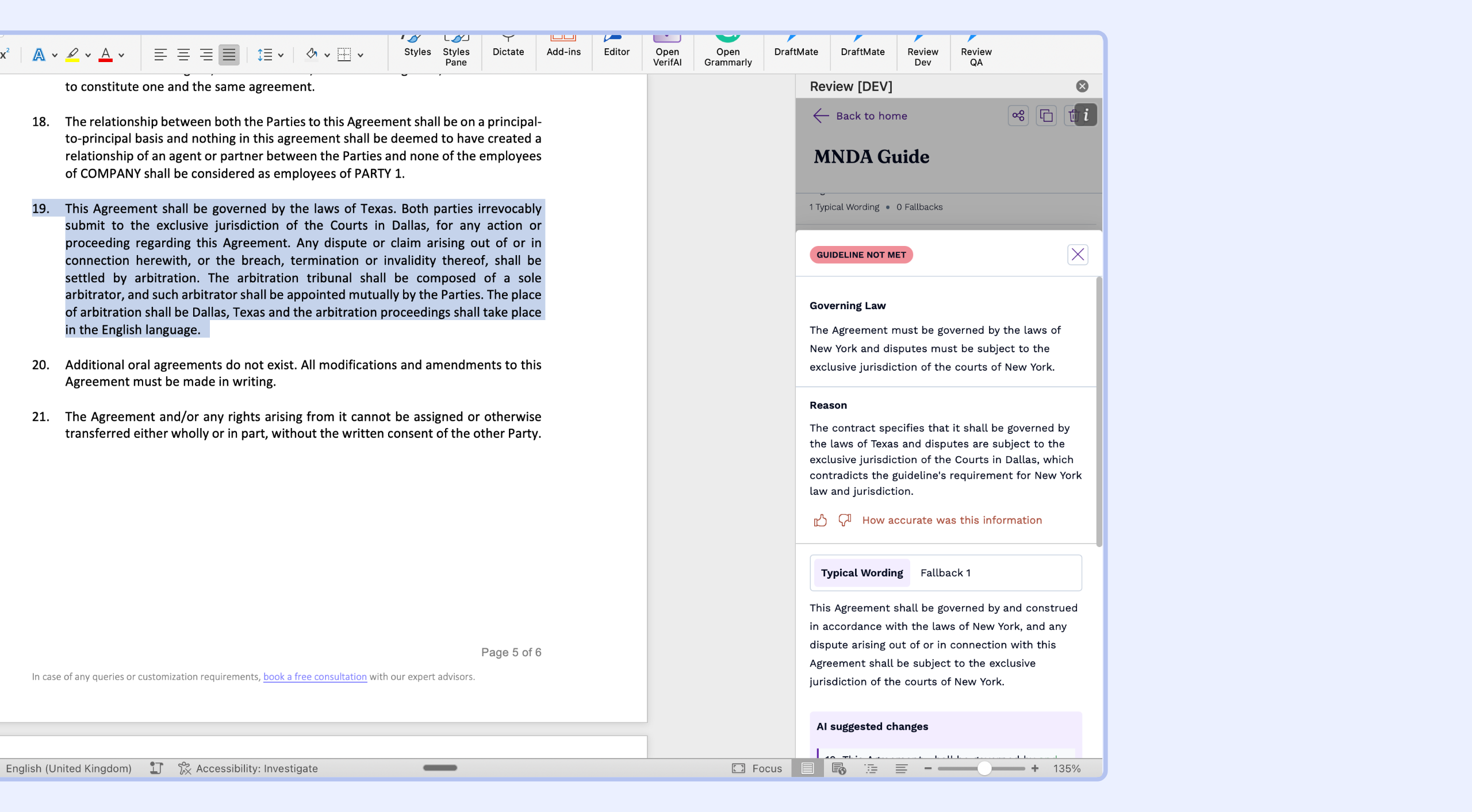
When a guideline finds a deviation, the results card gives you a complete picture:Guideline Title: The title you set appears at the top for quick identification.
Reason: The AI explains why the contract's text does not meet your guideline.
Suggestion Tabs: You can now see tabs for your Typical Wording and Fallback 1 (and Fallback 2). Click on a tab to view the exact clause language you stored in your playbook, giving you immediate context for negotiation.
Applying AI-Suggested Changes
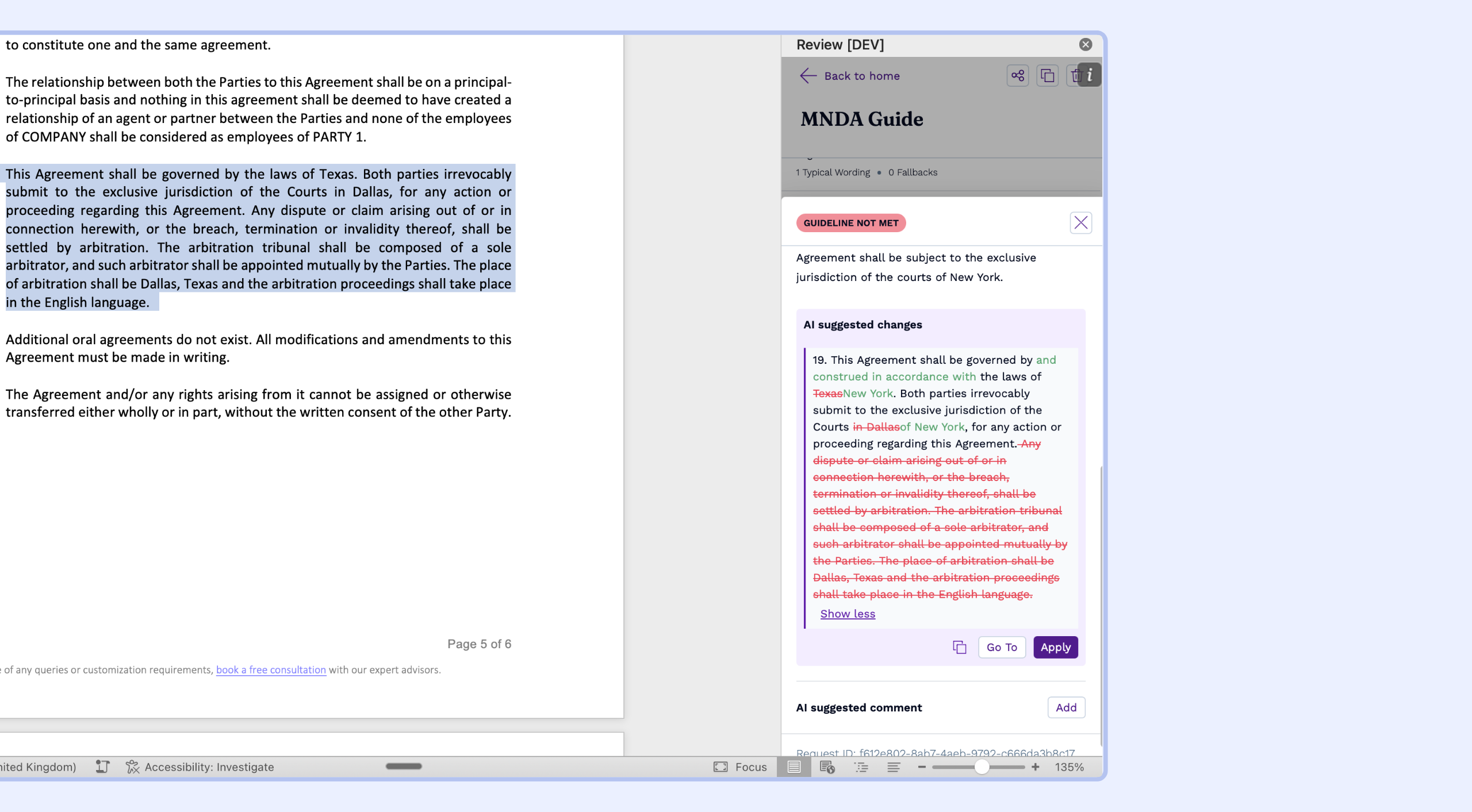
At the bottom of the card, VerifAI provides AI-generated suggestions to fix the contract. Because your guide is so detailed, you can now choose which suggestion to apply.First, select the tab you want to use as a basis for the change (e.g., Typical Wording or Fallback 1).
VerifAI will show you the AI suggested changes based on the clause you selected.
Click Apply, and VerifAI will instantly redline the text in the Word document with the corrected language.
You can also click Go To to jump directly to the relevant paragraph in the contract.
By building out detailed guides, you empower VerifAI to act as a true extension of your legal team, armed with the specific language and negotiation positions your organization trusts.