Using and Creating Specialized AI Agents
Last updated: May 5, 2026
Go beyond a general-purpose assistant and build a team of AI specialists. Agents are pre-configured versions of Sidebar, each with its own unique instructions, knowledge, and tools, designed to excel at specific, recurring tasks. Using an Agent ensures consistency, saves you from re-typing complex instructions, and allows you to share powerful workflows with your entire team.
What are Agents?
Think of an Agent as a saved "personality" or "specialist" for Sidebar. Instead of starting with the default "General Agent" every time, you can select a specialist for the job.
Standard Agents: A suite of pre-built specialists created by Team Sidebar for common legal tasks (e.g., "Contract Review Agent," "Legal Research Agent").
Custom Agents: Agents you create for your own specific needs. These can be Private (only for you) or Shared (available to everyone in your organization).
How to Use an Agent in a Chat
In a new chat, before typing your message, click the General Agent dropdown menu at the top of the message box.
Select the specialist you need from the list. For example, choose the EU Privacy & DORA Specialist for a compliance-related question.
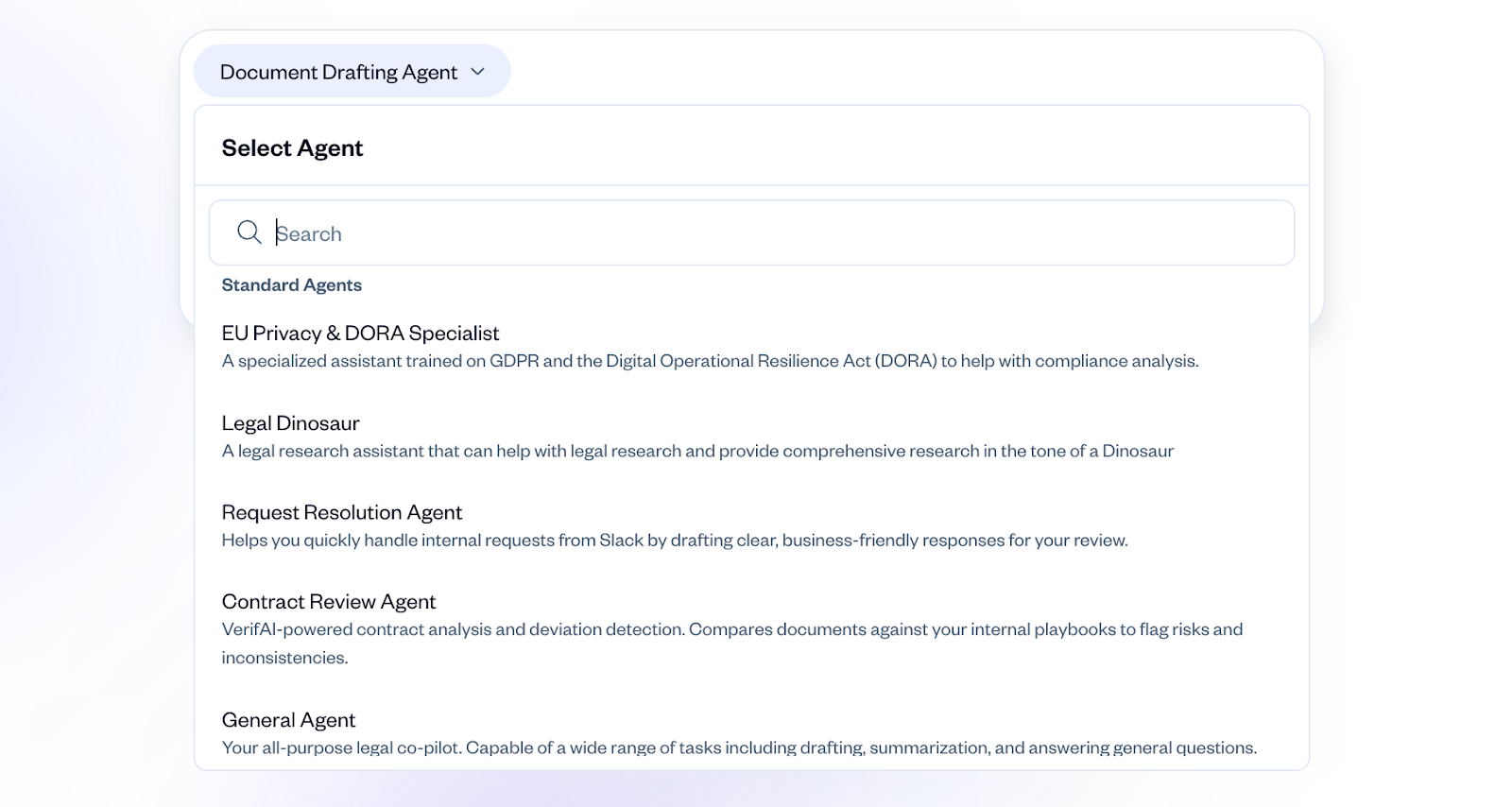
The selected Agent's name will now appear in the message box. You can now chat with this specialist.
Important: An Agent must be selected before you send the first message in a conversation. Once a chat has started, you cannot change the Agent for that specific chat.
How to Create and Manage Your Own Agents
This is where you can build powerful, reusable workflows for your team.
Navigate to the Agents tab in the left navigation panel. You will see a gallery of all available agents, organized into "Created by You," "Created by Your Team," and "Standard Agents."
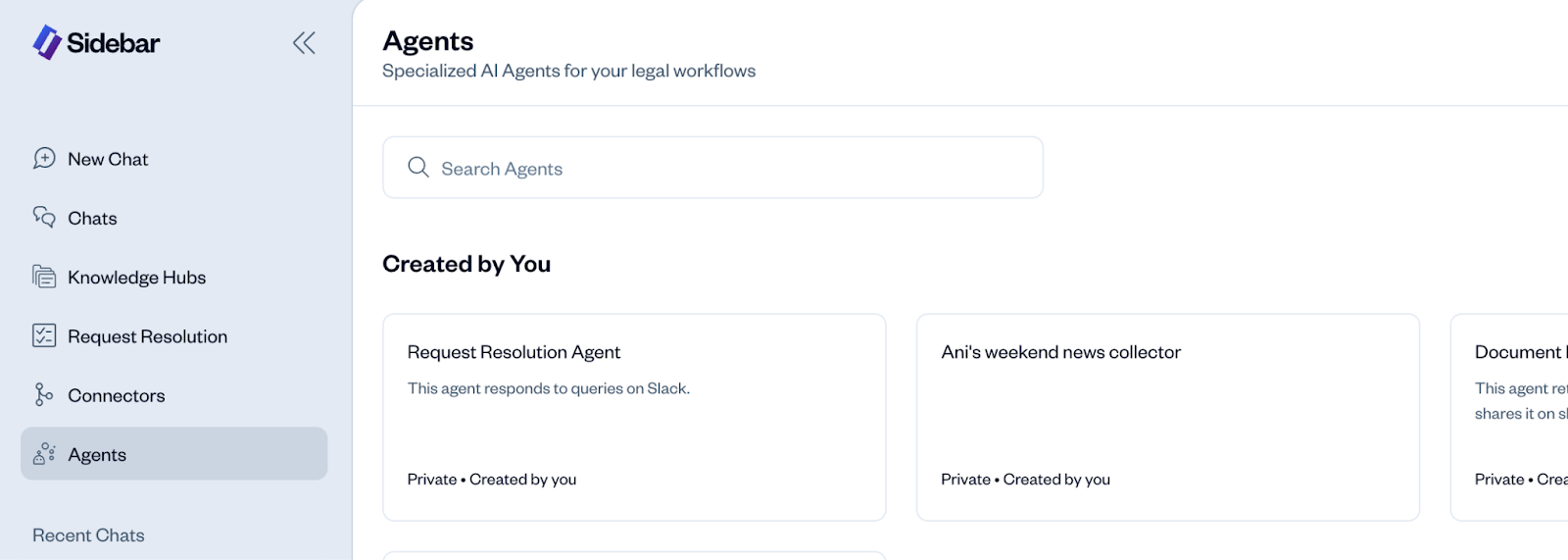
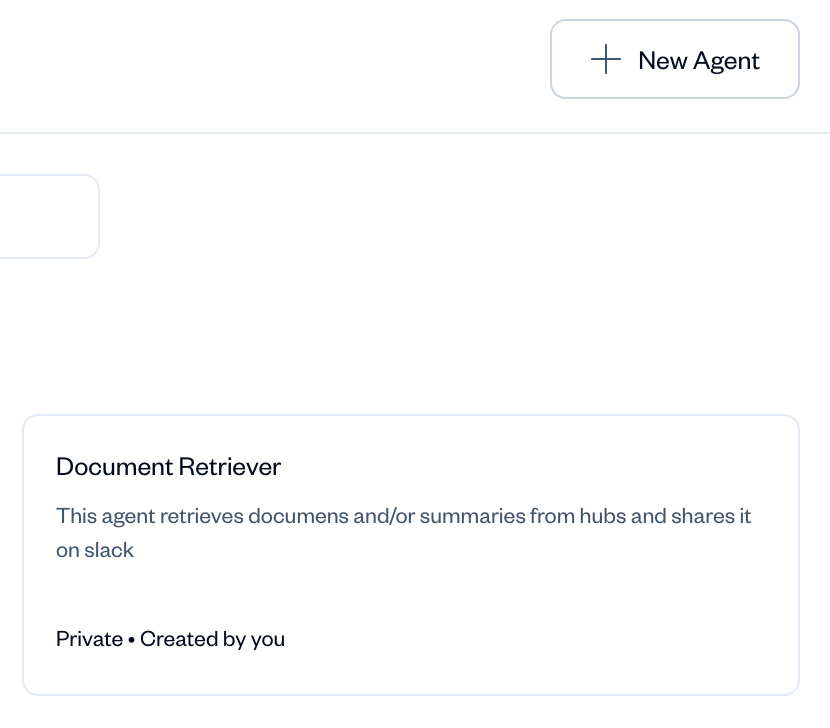
Click the + New Agent button in the top-right corner to open the configuration screen.
Fill out the details for your new Agent:
Name: Give it a clear, task-oriented name (e.g., "NDA Review Specialist").
Description: Briefly explain what the Agent does and when to use it. This description appears in the agent selection dropdown.
Instructions: This is the most critical part. Provide detailed, step-by-step instructions for how the Agent should behave. Be specific about its role, the tone it should use, and the format of its output.
Attachments: Pre-load the Agent with specific files or Knowledge Hubs that it should always reference. For an "NDA Review Specialist," you would attach your "NDA Playbook" Knowledge Hub here.
Default Sources: Select which knowledge sources this Agent should use by default.
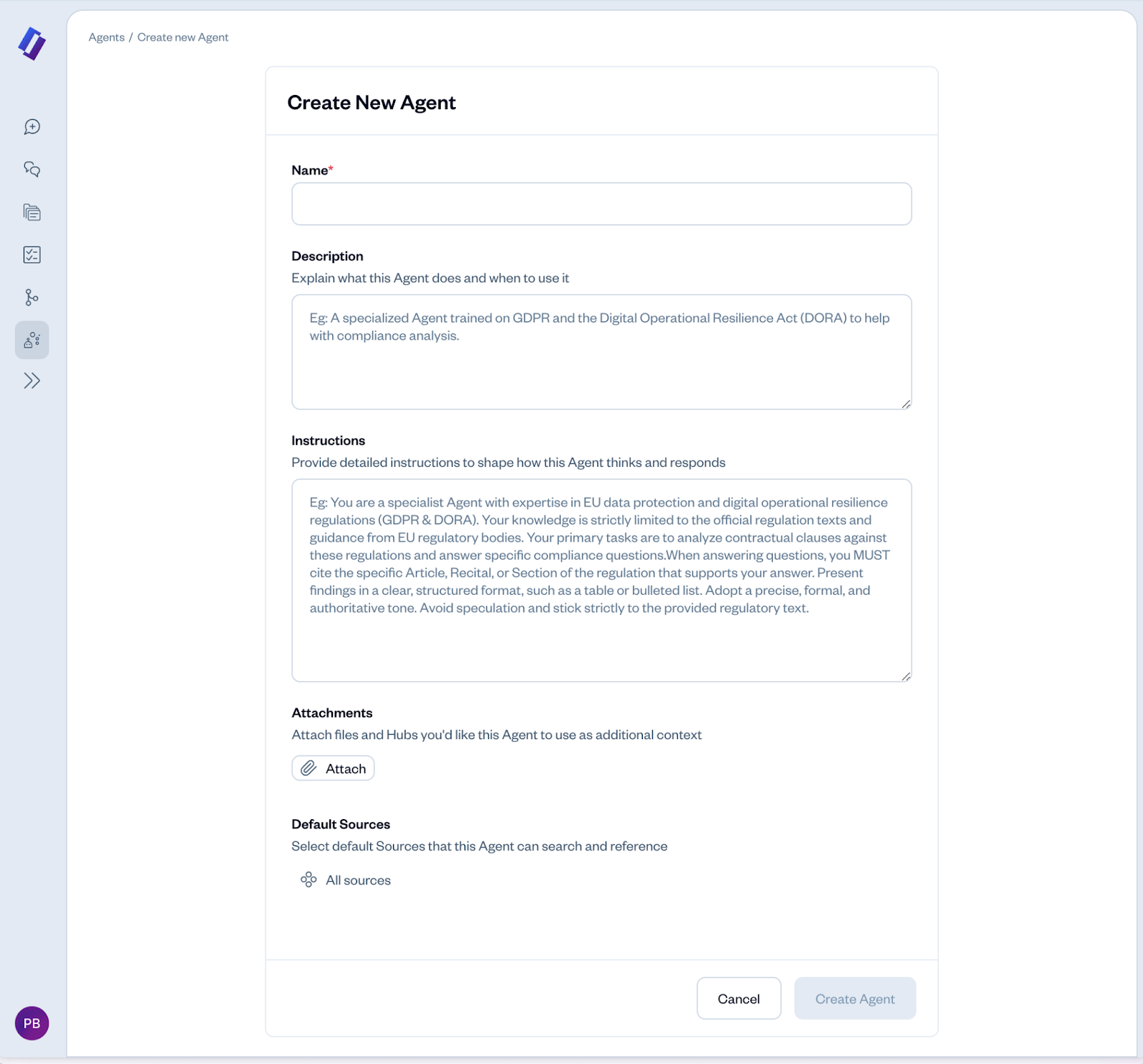
Click Create Agent to save it.
Managing Your Agents
From the Agents page, you can:
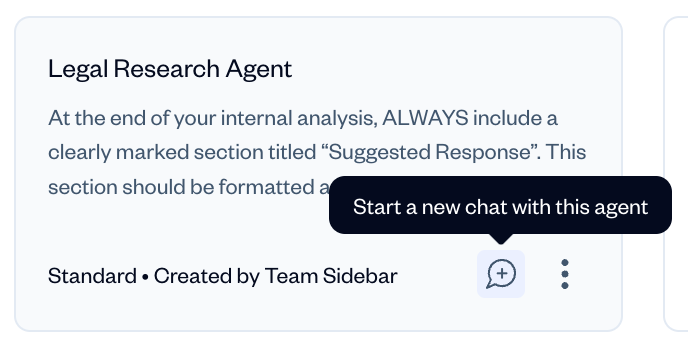
Start a Chat: Hover over any agent and click the chat icon to start a new conversation with it immediately.
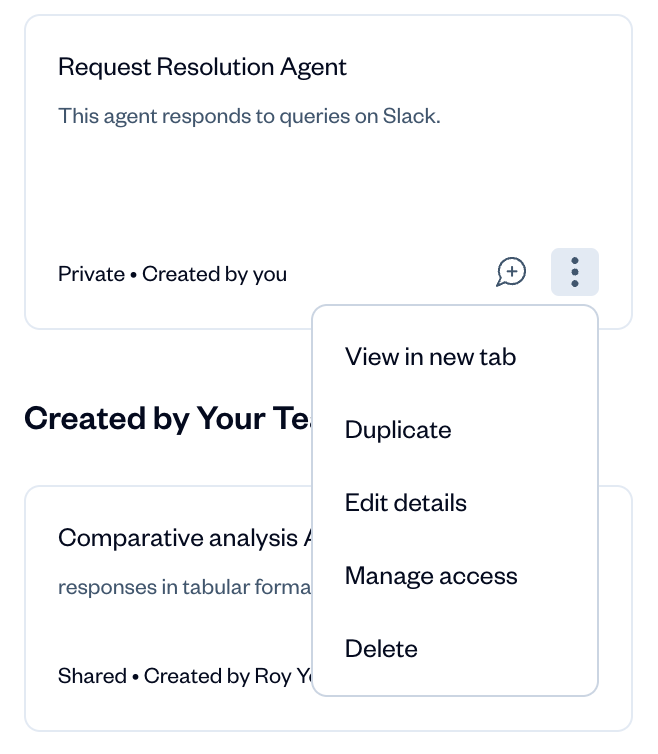
Edit, Duplicate, or Delete: Hover over an agent you created and click the three-dot menu.
Edit details: Edit the instructions, attachments, and sources of agents that you have created.
Duplicate: This is the best way to create a new agent based on an existing one (including Standard Agents).
Manage Access: Change an agent from "Private" to "Shared" so your team can use it. This is not available for agents that are not created by you, or for standard agents
Pro Tip: To create a highly specialized contract reviewer, Duplicate the "Standard Contract Review Agent." Then, Edit your new version and add your company's specific contract playbook as a default Attachment. Now you have a one-click specialist for reviewing third-party paper against your company's standard positions.
Troubleshooting & Common Questions
What's the difference between a private and a shared agent?
A Private agent is only visible and usable by you, the creator. A Shared agent is visible and usable by everyone in your organization's Sidebar workspace.
Why can't I edit a Standard Agent?
Standard Agents are templates provided by Sidebar. If you want to customize one, you should use the Duplicate option to create your own editable copy.
When should I create an Agent versus just typing instructions in a chat?
If you find yourself performing the same multi-step task repeatedly (e.g., "review this document against playbook X, format the output as a table, and use a formal tone"), that is a perfect use case for creating an Agent. It saves time and ensures consistency for you and your team.
Appendix: Guide to Standard Agents
Sidebar comes equipped with a suite of pre-built Standard Agents, each designed for a common legal workflow. Here is a guide to help you choose the right specialist for your task.
1. General Legal Co-pilot (Default)
Description: Your versatile starting point for any legal task. It can draft, research, summarize, and answer questions using a broad range of knowledge sources. Use this when you're not sure which specialist to choose.
2. Legal Research Associate
Description: Your go-to for foundational legal research. It analyzes statutes, regulations, and official guidance to provide sourced answers, saving you hours of manual searching. Ideal for getting a reliable "head start" on any legal question.
3. Internal Policy Expert
Description: Your company's institutional knowledge, on demand. This agent answers questions from you or your business teams based on your company's internal policies, playbooks, and SOPs stored in your Knowledge Hubs.
4. First Draft Contract Reviewer
Description: Get a head start on third-party paper. This agent reviews an incoming agreement against your standard playbook or another reference document, flagging deviations, identifying missing clauses, and summarizing key risks.
5. Clause Drafter
Description: Overcome the "blank page" problem. This agent drafts clear, legally-sound clauses based on your prompts, using best practices from legal databases and your own internal templates as a guide.
6. Regulatory Monitor
Description: Your proactive compliance radar. This agent monitors official government sources for updates on specific regulations or legal topics and can provide a summary of recent changes, helping you stay ahead of compliance.
7. Cross-Document Analyst
Description: Find the needle in the haystack. This agent analyzes a collection of documents—from your repository or a Knowledge Hub—to find trends, compare terms, and synthesize information across the entire set.
8. Sales Team Co-pilot
Description: A safe front door for your sales team. This agent, trained on legal's approved playbooks and FAQs, provides instant, reliable answers to common sales-related legal questions, reducing interruptions for the legal team.
9. Legal Memo Writer
Description: Go from research to a structured memo in minutes. This agent takes a collection of research, notes, or a conversation transcript and organizes it into a well-formatted memo, summary, or presentation outline.
10. Multi-Jurisdiction Analyst
Description: Your starting point for cross-border questions. This agent researches and compares laws and regulations across different states or countries, helping you understand the legal landscape for new markets or global policies.
11. Contract Query Agent
Description: Instantly find answers from within your executed contracts. This agent connects directly to your SpotDraft repository to find specific agreements, extract key clauses, and answer questions about your contractual obligations without manual searching.
12. Request Resolution Co-pilot
Description: Your frontline assistant for managing internal requests. It monitors intake channels, understands the query, and uses your internal knowledge to draft a suggested response for your review, giving you a 50% head start on every ticket.
13. EU Privacy & DORA Specialist
Description: A specialized agent with deep knowledge of EU privacy regulations, including GDPR and DORA. Use it to analyze data processing agreements, check vendor addendums against DORA requirements, or research specific compliance obligations.